

What is Microsoft Power Apps...?
Microsoft Power Apps is a powerful cloud-based application, available as part of Microsoft 365, that allows users to create apps for the web, mobile, and desktop, as well as being used to customise the forms used natively within SharePoint lists & libraries.
Power Apps for SharePoint Users
2 Hours
Duration
Intermediate
Level
AU$190+GST
per person
Course Overview
Microsoft Power Apps enables SharePoint users to replace standard list forms with tailored, user-friendly experiences that improve data quality and support everyday business processes.
In this practical course, participants will learn how to customise a SharePoint list form, organise fields and controls, apply simple business rules, work with common SharePoint column types, and publish the completed form for use in SharePoint. Demonstrations and guided activities provide participants with a clear foundation for creating useful low-code solutions without traditional software development.
Audience
This course is designed for SharePoint Site Owners, Power Users, Microsoft 365 Champions, business analysts, team leaders, administrators, and other users responsible for managing SharePoint lists or improving data-entry processes. It is suitable for participants who want to extend SharePoint using Power Apps and create more intuitive forms for their teams.
Course Prerequisites
Participants should have a working knowledge of SharePoint Online and be familiar with creating or using SharePoint lists, columns, views, and list items, as well as introductory experience creating Canvas Apps in Microsoft Power Apps. They should be familiar with adding screens and controls, setting properties, connecting to a data source, and using simple Power Fx formulas. No traditional programming experience is required.
If you don’t feel you have the required prerequisite experience, you may want to attend one or more of the following courses prior to attending this course:
SharePoint for Power Users
SharePoint for Site Owners
Power Apps for Super Users
Registering Multiple Participants?
Save up-to 20% when registering multiple participants on select courses.
Do you have 5 or more participants?
Private courses are more cost-effective if you're looking to upskill 5 or more people.
Prerequisites
SharePoint for Site Owners

Alternative Courses
Power Apps for Super Users

Next Steps...
Power Automate Super User

Copilot Cowork

Course Modules
Module 1: Introduction to Power Apps and SharePoint
This module introduces Microsoft Power Apps and explains how it can extend SharePoint Online. Participants will compare standard SharePoint forms with customised Power Apps forms, explore common business scenarios, and identify when a customised form is appropriate. The module also provides an overview of the Power Apps design environment and the relationship between the app, its SharePoint data source, and the end-user experience.
- What is Microsoft Power Apps?
- Understanding low-code app development
- How Power Apps integrates with SharePoint
- Standard SharePoint forms versus customised forms
- Common business scenarios and examples
- Launching Power Apps from a SharePoint list
- Touring the Power Apps design environment
- Understanding forms, cards, controls, and properties
Module 2: Customising a SharePoint List Form
This module guides participants through the process of transforming a standard SharePoint list form into a clearer and more effective data-entry experience. Participants will learn how to select, arrange, and configure fields; modify labels and instructions; and adjust the form layout to suit a business process. Attention is given to maintaining a logical structure that is easy for users to understand and complete.
- Creating a customised form from a SharePoint list
- Understanding the SharePoint integration control
- Working with form modes: New, Edit, and View
- Adding, removing, and reordering data cards
- Unlocking and configuring cards
- Changing labels, instructions, and control properties
- Organising fields into a user-friendly layout
- Improving accessibility and usability
Module 3: Adding Business Logic & Validation
This module shows participants how to make a SharePoint form respond intelligently to user input. Using introductory Power Fx formulas, participants will apply conditional behaviour, set useful default values, validate entries, and provide visual guidance. These techniques help reduce incomplete or inaccurate submissions while keeping the form straightforward for end users.
- Introduction to Power Fx formulas
- Understanding properties and formula syntax
- Using If() and simple logical conditions
- Showing or hiding fields based on selections
- Making fields required in specific circumstances
- Setting default values
- Displaying validation messages and user guidance
- Applying conditional colours and formatting
Module 4: Working with SharePoint Data
This module explores how common SharePoint column types are represented and managed within a customised Power Apps form. Participants will examine the controls used for text, choice, lookup, person, date, and attachment fields, and learn practical approaches for presenting these fields clearly. The module also highlights considerations that help preserve reliable connections between the form and its SharePoint list.
- Working with text, number, and Yes/No columns
- Configuring Choice and multi-select Choice columns
- Working with Lookup columns
- Using Person or Group fields
- Managing date and time controls
- Supporting attachments
- Understanding required fields and SharePoint settings
- Refreshing and maintaining the SharePoint data connection
Module 5: Testing, Publishing & Maintaining the Form
This final module explains how to test, publish, and maintain a customised SharePoint form. Participants will review the form in different modes, confirm that data is saved correctly, and publish changes for end users. The module also covers safe update practices, version awareness, restoring the standard SharePoint form, and basic governance considerations for ongoing ownership and support.
- Previewing and testing the form
- Testing New, Edit, and View experiences
- Checking validation and data submission
- Saving and publishing changes to SharePoint
- Updating an existing customised form
- Restoring the default SharePoint form
- Ownership, permissions, and governance considerations
- Recommended next steps and further learning
Upcoming Dates...
Related Courses...
Course Inclusions...
Certified Trainers
All our trainers are Microsoft 365 experts in their own right, and must first be qualified to teach in our own World Education Alliance (WEA) Training Certification Program before delivering any of our courses.
We feel that it is important that all of the trainers and instructors can take their real-world experiences into the classroom, in order to ensure that they are well equipped to respond to any queries and questions which may be put their way, as well as give accurate and relevant guidance in the most appropriate methods to leverage the technology which SharePoint and its related tools provide.
Course Materials Provided
Our Microsoft 365 courseware is known as being some of the best training materials in the world.
FREE Email Support
We offer free post-course support with all of our courses, available via email, telephone, or our Viva Engage community.
FREE Re-sits within 10 Months
Once you've attended any of our public courses, you can re-sit the same course as many times as you like within the next 10 months, as long as your re-sit course has reached the minimum number of paid attendees required to go ahead.
Certificate of Completion
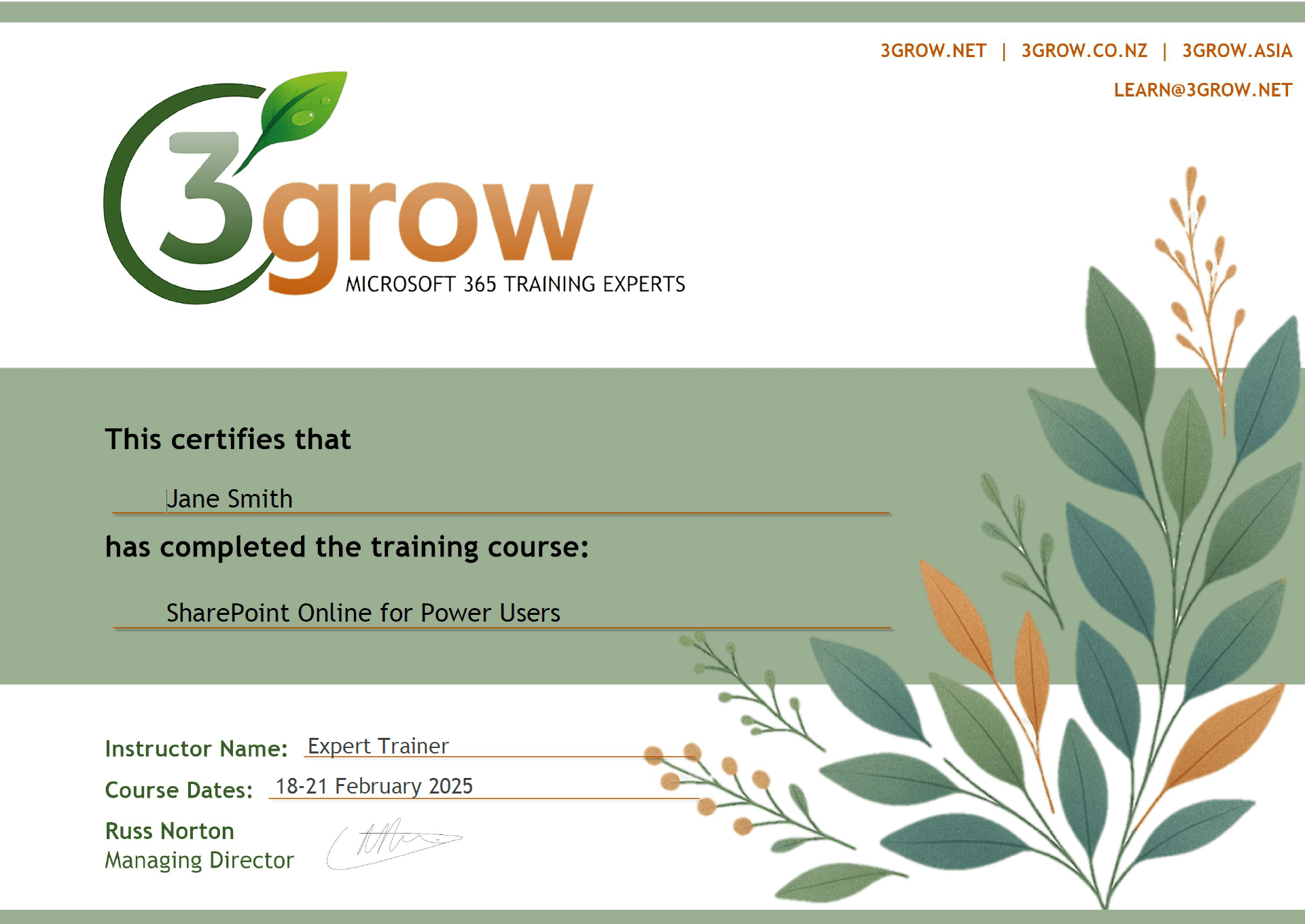
Anyone attending a 3grow course will be provided with a personalised certificate of completion.
Get Hands-on Experience
All 3grow courses include plenty of hands-on experience, delivered via a combination of instructor-led follow-along demos and comprehensive lab exercises.
Personal Class Sizes
Although we allow a maximum of only 10 attendees on our public courses, the average is around 5 students, therefore each participant will leave the course feeling like they received the personal attention they deserve.

