
Microsoft Word Advanced
1 Day
Duration
Advanced
Level
AU$350+GST
per person
Course Overview
This intensive one-day Advanced Word course is designed to help participants develop the advanced skills required to produce high-quality, professional business documents in Microsoft Word. Topics covered include working with templates, creating and managing master documents, using indexes and bookmarks, and applying endnotes and footnotes effectively. Participants will also explore a range of other advanced Word features that improve document structure and consistency.
The course also focuses on streamlining document creation through advanced techniques such as complex mail merges, importing and integrating data from external applications, and automating tasks with fields, forms, and macros. By the end of the course, students will be equipped to create sophisticated documents more efficiently and with greater accuracy.
Audience
This course is intended for users who are already familiar with Microsoft Word and want to expand their knowledge of its more powerful capabilities. It is particularly suitable for those who work with lengthy documents, require document automation, use outlining features, or need to perform advanced merging tasks.
Course Prerequisites
To gain the most benefit from this course, participants should have completed our introductory Word course and intermediate Microsoft Word training or possess equivalent practical experience. A solid understanding of everyday Word features and document creation techniques is recommended before attending.
Registering Multiple Participants?
A 10% discount will be automatically applied when registering two or more participants for a course.
Do you have 5 or more participants?
Private courses are more cost-effective if you're looking to upskill 5 or more people.
Prerequisites
Word Intermediate

Alternative Courses
Copilot Cowork

Next Steps...
SharePoint Power User

Copilot for End Users

Course Modules
Module 1: Templates
- Understanding Templates
- Using a Sample Template
- Downloading an Online Template
- Creating a Template
- Modifying a Template
- Using a Custom Template
- Attaching a Template to a Document
- Copying Styles Between Templates
- Creating a Template from a Template
- Tips for Developing Templates
Module 2: Section Breaks
- Understanding Section Breaks
- Inserting a Next Page Section Break
- Inserting a Continuous Section Break
- Inserting an Even Page Section Break
- Inserting an Odd Page Section Break
Module 3: Fields
- Understanding Fields
- The Field Dialog Box
- Inserting a Document Information Field
- Setting Field Properties
- Showing and Hiding Field Codes
- Showing and Hiding Field Shading
- Inserting Formula Fields
- Inserting a Date and Time Field
- Updating Fields Automatically When Printing
- Locking and Unlocking Fields
- Applying a Number Format
Module 4: Master Documents
- Understanding Master Documents
- Understanding Subdocuments
- Creating a Master Document
- Creating Subdocuments
- Working with Master Document Views
- Inserting Subdocuments
- Formatting a Master Document
- Editing Subdocuments
- Merging Subdocuments
- Splitting Subdocuments
- Deleting Subdocuments
- Building a Table of Contents
- Printing a Master Document
Module 5: Table of Contents
- Understanding Tables of Contents
- Inserting a Table of Contents
- Navigating with a Table of Contents
- Updating Page Numbers
- Updating a Table of Contents
- Customising a Table of Contents
- Formatting a Table of Contents
Module 6: Bookmarks
- Creating Bookmarks
- Navigating with Bookmarks
- Deleting Bookmarks
Module 7: Indexing
- Understanding Indexing
- Marking Index Entries
- Creating an AutoMark File
- Marking Index Entries with an AutoMark File
- Removing Marked Entries
- Generating an Index
- Modifying the Index Format
- Updating an Index
Module 8: Tracking Changes
- Understanding Tracking Changes
- Enabling and Disabling Tracked Changes
- Switching Between Simple Markup and All Markup
- Using Comments in Tracked Changes
- Showing and Hiding Markup
- Showing Revisions Inline and in Balloons
- Advanced Tracking Options
- Accepting and Rejecting Changes
Module 9: Protecting Documents
- Understanding Document Protection
- Making a Document Read Only
- Working with a Read Only Document
- Restricting Formatting
- Working with Formatting Restrictions
- Restricting Editing
- Making Exceptions
- Stopping Document Protection
- Applying an Open Document Password
- Applying a Modify Document Password
Module 10: Macros
- Understanding Macros in Word
- Setting Macro Security
- Saving a Document as Macro-Enabled
- Recording a Macro
- Running a Macro
- Assigning a Macro to the Toolbar
- Assigning a Keyboard Shortcut to a Macro
- Editing a Macro
- Creating a MacroButton Field
- Copying a Macro
- Deleting a Macro
- Tips for Developing Macros
Module 11: Interactive Fields
- Understanding Interactive Fields
- Inserting a FILLIN Field
- Typing Field Codes into a Document
- Activating Interactive Fields
- Inserting an ASK Field
- Using REF to Display Bookmarks
- Activating Fields Automatically
Module 12: Setting Word Options
- Understanding Word Options
- Personalising Word
- Setting Display Options
- Understanding File Locations
- Setting File Locations
- Understanding Save Options
- Setting Save Options
Module 13: Electronic Forms
- Understanding Electronic Forms in Word
- Creating the Form Layout
- Understanding Content Controls
- Displaying the Developer Tab
- Inserting Text Controls
- Setting Content Control Properties
- Inserting the Date Picker Control
- Inserting Prompt Text
- Inserting Formulas
- Inserting a Combo Box Control
- Inserting a Drop Down List Control
- Protecting and Saving the Form
- Using an Electronic Form
- Editing a Protected Form
Module 14: Cross-Referencing
- Creating Cross-References
- Deleting Cross-References
Module 15: Footnotes And Endnotes
- Understanding Footnotes And Endnotes
- Inserting Footnotes
- Inserting Endnotes
- Locating Footnotes And Endnotes
- The Footnote And Endnote Dialog Box
- Changing The Number Format
- Converting Footnotes And Endnotes
- Deleting Footnotes And Endnotes
Upcoming Dates...
Why Take a Microsoft Word Advanced Course?
Microsoft Word is a powerful tool — but many professionals only scratch the surface of its capabilities. Our Microsoft Word Advanced course is designed to help you go beyond basic document formatting and learn how to automate tasks, structure large documents, and use templates and macros like a pro. Whether you work in admin, legal, education, or business, this course gives you the tools to streamline workflows and produce polished, professional documents efficiently.
What You’ll Learn in Word Advanced
- Create and customise reusable templates for consistent document design
- Manage long documents using master documents and subdocuments
- Insert and update a Table of Contents, bookmarks, and indexes
- Use advanced fields, cross-referencing, and automation features
- Record and use macros to speed up repetitive formatting tasks
- Track changes, protect documents, and design interactive forms
Frequently Asked Questions
Is this course suitable for beginners?
This course is designed for users who already have a solid understanding of Microsoft Word. We recommend completing our Word for Beginners and Word Intermediate courses first, or having equivalent real-world experience.
Is Microsoft Word Advanced available online?
Yes, this course is available as a live virtual session or as an in-person course in selected cities across Australia and New Zealand.
What version of Microsoft Word is covered?
This course focuses on Microsoft Word within the Microsoft 365 suite, but is also applicable to Word 2019 with minimal feature differences.
Will I receive a certificate?
Yes. All attendees receive a Certificate of Completion, acknowledging their participation and the skills gained in the Microsoft Word Advanced course.
New to Word? Start with our Microsoft Word for Beginners course.
Continue your learning with our Word Intermediate course or browse all Microsoft 365 training.
Related Courses...
Course Inclusions...
Certified Trainers
All our trainers are Microsoft 365 experts in their own right, and must first be qualified to teach in our own World Education Alliance (WEA) Training Certification Program before delivering any of our courses.
We feel that it is important that all of the trainers and instructors can take their real-world experiences into the classroom, in order to ensure that they are well equipped to respond to any queries and questions which may be put their way, as well as give accurate and relevant guidance in the most appropriate methods to leverage the technology which SharePoint and its related tools provide.
Course Materials Provided
Our Microsoft 365 courseware is known as being some of the best training materials in the world.
FREE Email Support
We offer free post-course support with all of our courses, available via email, telephone, or our Viva Engage community.
FREE Re-sits within 10 Months
Once you've attended any of our public courses, you can re-sit the same course as many times as you like within the next 10 months, as long as your re-sit course has reached the minimum number of paid attendees required to go ahead.
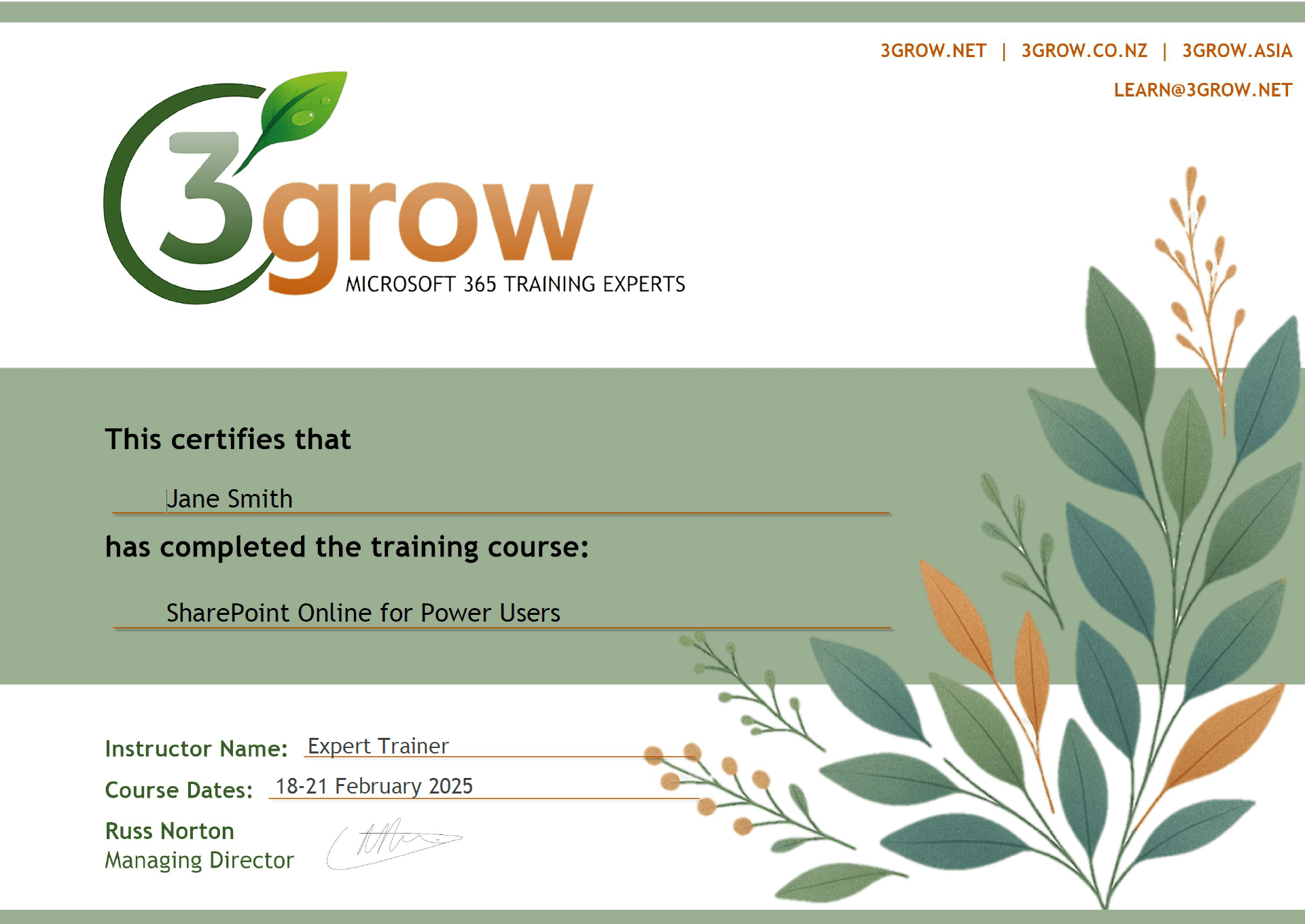
Certificate of Completion
Anyone attending a 3grow course will be provided with a personalised certificate of completion.
Get Hands-on Experience
All 3grow courses include plenty of hands-on experience, delivered via a combination of instructor-led follow-along demos and comprehensive lab exercises.
Personal Class Sizes
Although we allow a maximum of only 10 attendees on our public courses, the average is around 5 students, therefore each participant will leave the course feeling like they received the personal attention they deserve.

