
Have you ever opened a SharePoint list only to wonder where half your data went, before realising someone left a sneaky filter turned on three columns to the right? Or perhaps you have watched a colleague struggle to figure out which view they were looking at, or get lost inside a nested folder structure. While SharePoint Lists remains one of the most versatile data management tools in Microsoft 365, navigating dense list views has occasionally tested the patience of everyday users.
Microsoft has announced a dedicated entry on the Microsoft 365 roadmap aimed at fixing these friction points: SharePoint: Lists - Refreshed user experience. This update focuses on making common actions easier to find, improving list navigation, and providing clear visibility over views and active filters.

What is Changing in the Refreshed Experience?
The upcoming interface refresh addresses several key areas where users frequently encounter confusion. Rather than overhauling how list data works behind the scenes, Microsoft is refining the day-to-day visual layer to make lists far more intuitive.
Here is a breakdown of what to expect:
Visible filter pills:
Instead of hiding active filters inside individual column headers, applied filters will appear prominently as interactive badges or pills above the list data. This makes it instantly obvious what criteria are currently narrowing down the records.
Reorganised command bar:
The top command bar is being tidied up to place high-frequency actions within easy reach, reducing visual clutter and cutting down on unnecessary clicks.
Clearer breadcrumb navigation:
For lists that rely on folders to segment items, a clearer breadcrumb trail will help users understand exactly where they are in the folder hierarchy and jump back up to previous levels smoothly.
Prominent view selection and creation:
Switching between different list views, or saving a customised view on the fly, will become more straightforward, helping team members locate relevant perspectives on their data faster.
Consolidated view customisation:
Options for sorting, grouping, filtering, and column formatting are being pulled together into a more cohesive interface, reducing the need to hunt across multiple menus.
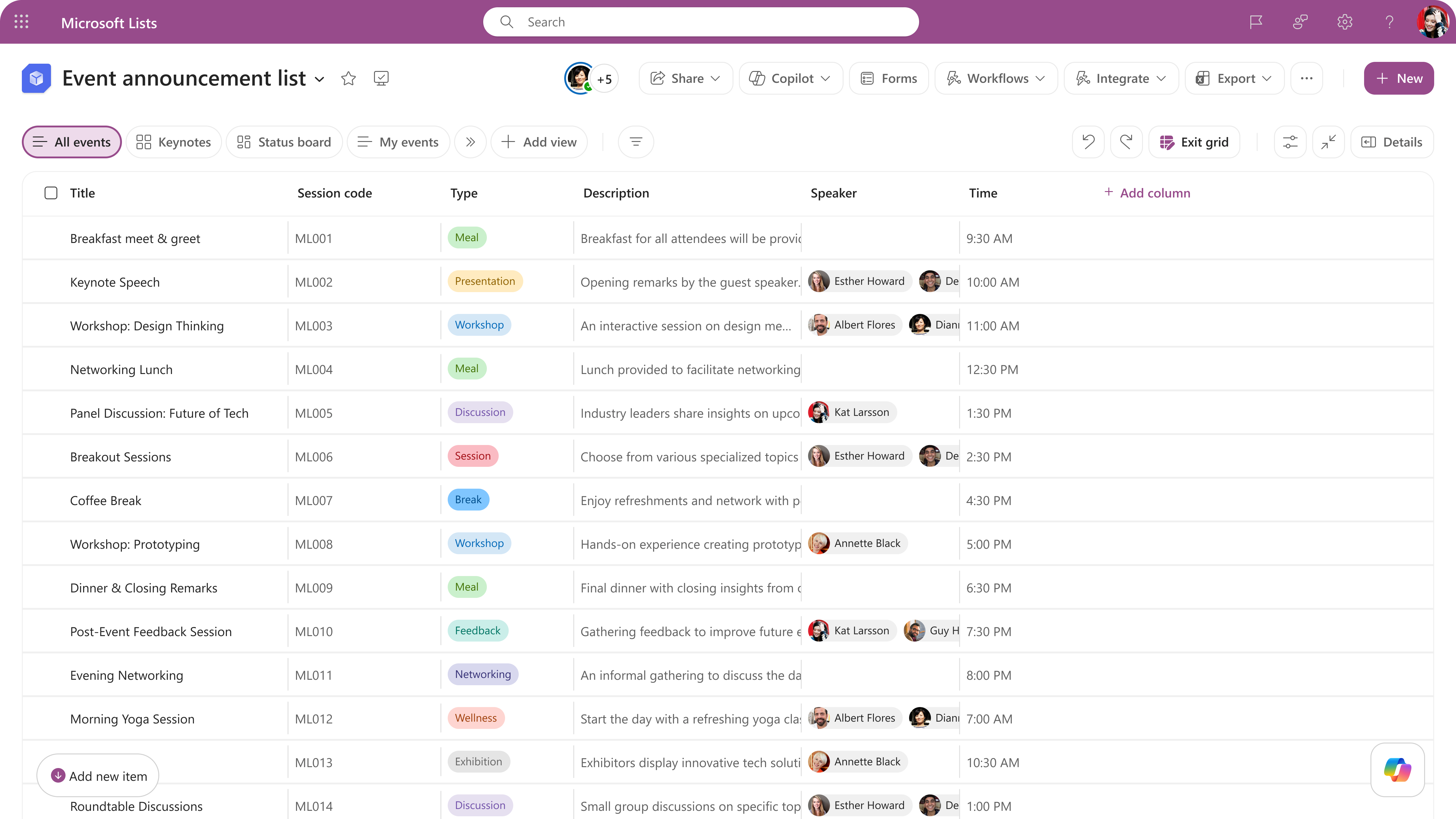
Source: https://support.microsoft.com/en-us/customercomms/media/messagecenter/2026/10/22335-1.png
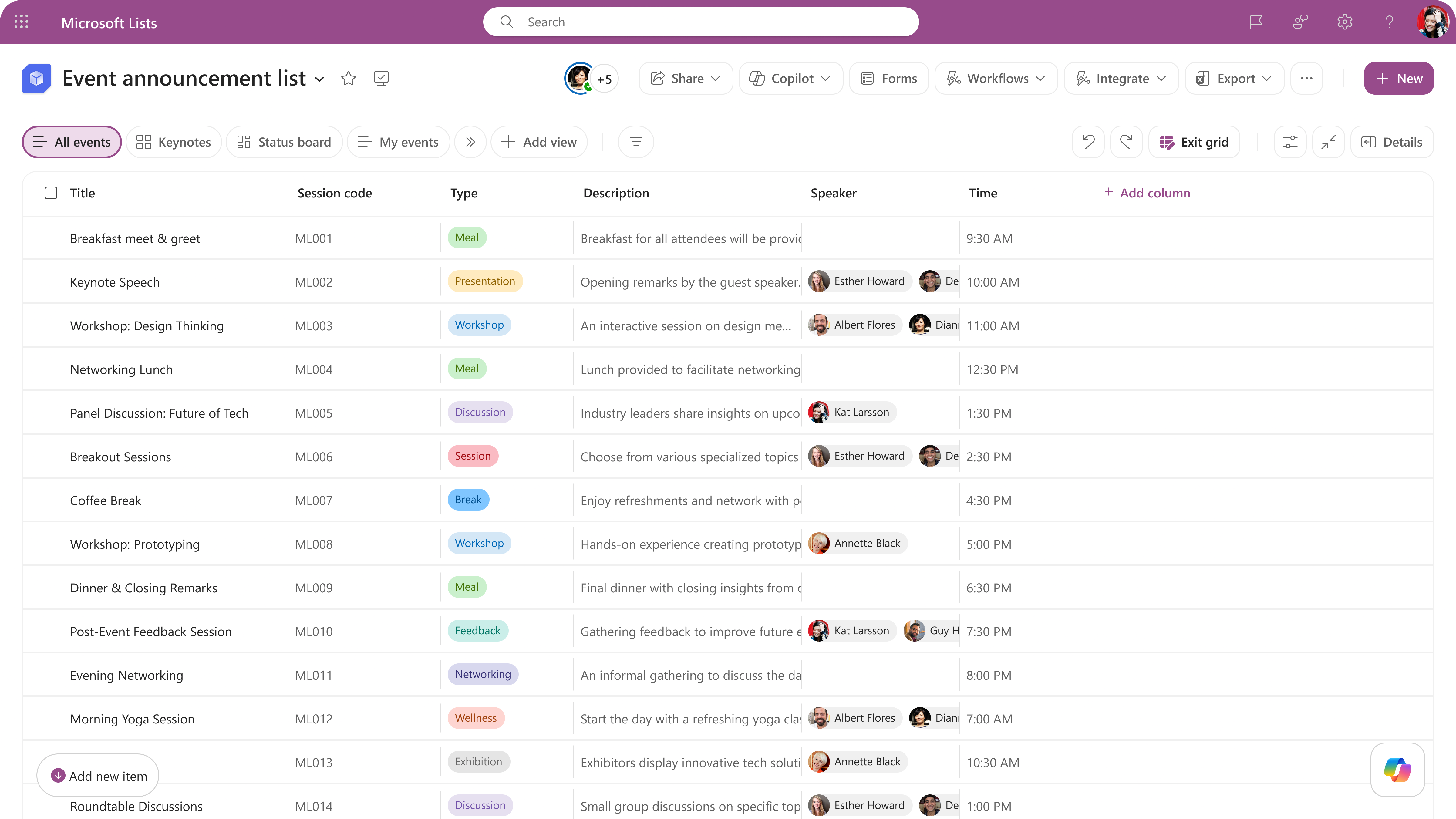
If you're thinking "hold on, that looks like the new(ish) document library experience!", you'd be absolutely correct! It seems Microsoft is going back to the olden days when lists and libraries share the same user experience!
Practical Scenarios: How Teams Will Benefit
To see why these subtle interface refinements make a genuine difference in day-to-day work, let us look at a few realistic workplace examples.
An HR Coordinator managing monthly onboarding
An HR coordinator needs to track incoming starters, their equipment delivery status, and signed contracts. With visible filter pills, they can filter by the current month and immediately verify that no older records are cluttering the screen. If they need to hand the list over to a colleague, that person can see exactly which filters are active without guessing why only ten staff members appear.
A Project Manager reviewing risk registers
During a weekly steering committee, a project manager needs to jump quickly between an All Risks overview, an Open High Severity view, and a grouped view by department. The updated view selector and consolidated customisation menu allow them to switch perspectives instantly and adjust column groupings on the fly without breaking meeting momentum.
A Facilities Team managing asset folders
A facilities team uses nested folders to organise maintenance logs by building, floor, and equipment type. The improved breadcrumb navigation provides clear context at every level, ensuring technicians can quickly navigate back up to the building level after logging an inspection on a specific floor.
An Operations Lead training new staff
Introducing junior team members to existing SharePoint processes often requires explaining where specific commands hide. A streamlined command bar and clearer view controls lower the learning curve, meaning new starters can create items, apply filters, and export data without needing dedicated coaching sessions.
Who Is Affected and When Can You Expect It?
This refresh applies across SharePoint Online and will benefit anyone who interacts with lists, from casual viewers and content contributors to site owners and list administrators. If your organisation uses Microsoft Lists standalone or embedded inside SharePoint team sites and Microsoft Teams tabs, these usability upgrades will apply directly to your everyday workflows.
Microsoft currently lists the expected availability as December CY2026. As with all Microsoft 365 roadmap announcements, this timeline represents a planned target rather than a guaranteed launch date. Microsoft often tests interface adjustments across targeted release rings before wider general availability, so rollout timings may shift as development progresses.
How to Prepare Your Organisation
Because this update focuses on user experience enhancements rather than structural database changes, your existing lists and column configurations will remain intact. However, you can take a few practical steps to get your environment ready:
Review list hygiene:
Take the opportunity to audit older lists. Consolidate redundant views, remove outdated personal views, and clean up unnecessary folder structures where metadata columns could serve a better purpose.
Standardise view naming:
Ensure view names are clear and descriptive (such as Active Invoices - Awaiting Approval rather than simply Russ's View) so team members can take full advantage of the updated view switcher.
Plan light user communications:
Once Microsoft releases further interface screenshots closer to launch, prepare a brief tip sheet for internal support channels to introduce staff to the new filter pills and command bar layout.
Keeping up with Microsoft 365 enhancements ensures your organisation gets the absolute best return on its technology investment. If your team wants to build confidence with SharePoint, Power Platform, and modern collaborative tools, explore our comprehensive range of hands-on courses at https://3grow.net/courses/.