
Introduction
Microsoft 365 Copilot has the potential to dramatically improve productivity by helping users find information, summarise content, generate documents, analyse data, and automate routine tasks. However, the quality of Copilot's responses is directly related to the quality, security, and organisation of the information stored within Microsoft 365. For most organisations, that means SharePoint.
SharePoint has become the primary knowledge platform underpinning Microsoft 365, and many of Copilot's most valuable responses are generated using content stored in SharePoint sites, Teams, and OneDrive
The good news is that if your SharePoint environment is already well-governed, Copilot adoption will be significantly easier. The challenge is that many organisations have accumulated years of unmanaged content, excessive permissions, duplicated information, and outdated sites. While these issues may have gone unnoticed in the past, AI has a way of exposing information management problems very quickly. As Microsoft continues to position SharePoint as the content foundation for Copilot and AI agents, ensuring that information is secure, accurate, and discoverable has never been more important.
Checks for IT Managers and Microsoft 365 Administrators
Before rolling out Copilot, IT teams should perform the following checks:
-
- Review SharePoint and Teams permissions for oversharing and excessive access.
- Audit external sharing settings and identify sites that expose information too broadly.
- Identify inactive, duplicate, or abandoned SharePoint sites and archive or remove them where appropriate.
- Ensure site ownership is clearly assigned and that every site has an active owner.
- Review lifecycle and retention policies to ensure outdated content is appropriately managed.
- Implement a governance framework covering site provisioning, permissions, content management, and ownership.
- Assess Microsoft Purview policies for sensitivity labels, compliance requirements, and data protection.
- Identify sites containing highly sensitive information and ensure access controls are appropriate.
- Review metadata strategies, content types, and information architecture to improve search quality and discoverability.
- Develop user education plans so staff understand how Copilot accesses and uses organisational information.
You may want to check out this blog post, where I talk about a common mistake that SharePoint administrator make...
Checks for Site Owners and Business Users
Copilot readiness is not solely an IT responsibility. SharePoint site owners and content creators also play a critical role in ensuring information is accurate, useful and secure.
Site owners should consider the following:
-
- Remove outdated, duplicated, and superseded documents.
- Review site permissions and confirm all SharePoint site members genuinely require access.
- Check document libraries are organised logically and consistently.
- Use meaningful document names and folder structures (where folders are appropriate).
- Apply metadata where available instead of relying solely on folders.
- Ensure important business documents are stored in SharePoint rather than local drives or personal storage locations.
- Review pages and content regularly to ensure information remains accurate.
- Clearly identify authoritative versions of policies, procedures, and templates.
- Ensure key business knowledge is documented rather than remaining locked in emails or personal notes.
- Consider whether a new employee or colleague would be able to locate and understand important information without assistance.
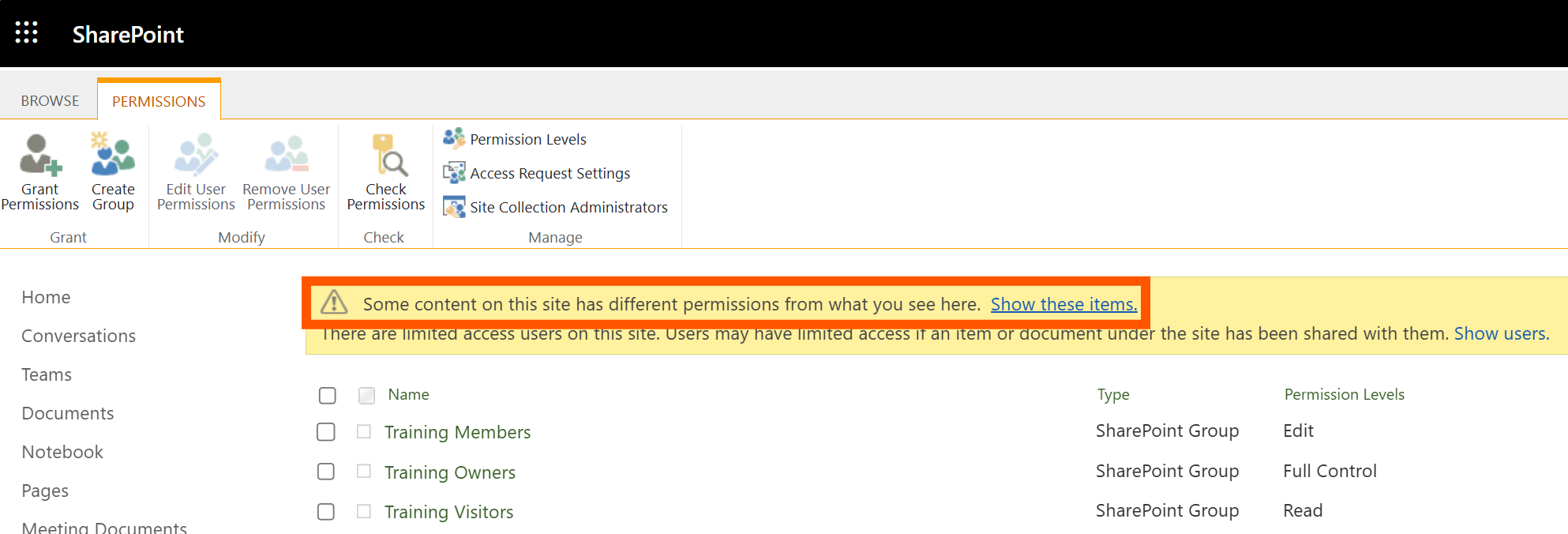
- Regularly audit your SharePoint lists and libraries to check for files, folders and list items with "unique" (non-inherited) permissions:
- Within each SharePoint site in which you're a site owner/administrator, go to: [site URL]/_layouts/15/user.aspx
- If the message highlighted below is shown, select Show these items to view all lists, libraries, folders, documents and list items currently not inheriting their permissions from the site.
-
-
- Evaluate whether the unique permissions of each object are still required, and it not, re-establish permission inheritance between that object (e.g. document) and its parent (e.g. library or folder)
-
TOP TIP: You can use Power Automate to re-establish permission inheritence en-masse within your lists and libraries!
Checks for ALL Users
Every user is responsible for ensuring files and data which they own are appropriately secured...
Even if you're not an IT administrator or SharePoint Site Owner, that doesn't mean there's no information for which you're responsible - you are the owner of your OneDrive library, and everything within it!
EVERY user should do the following:
-
- Within OneDrive, which can be access in a web browser, through Microsoft Teams, or via Microsoft Outlook, appraise the files and folders in your OneDrive which are currently available to someone other than just you:
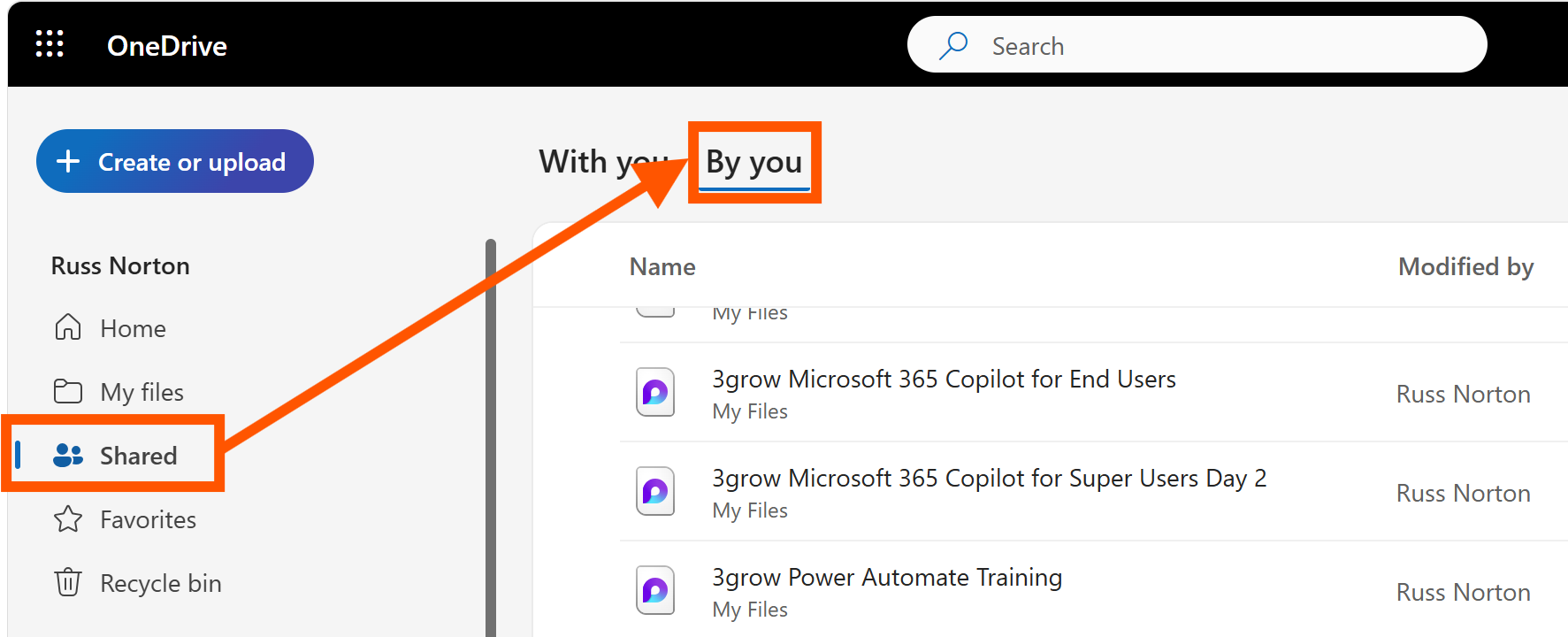
- To remove other people's access, right-click the file/folder, select Manage Access, then in the resulting dialogue box, select Stop sharing
It's recommended that you audit the permissions of your OneDrive's contents periodically to ensure proper permissions control
The Bottom Line
Many organisations view Copilot as an AI project, but the most successful deployments are actually information management projects. Copilot performs best when content is secure, well-governed, easy to find, and actively maintained. The organisations that invest time in cleaning up their SharePoint environment before deploying Copilot will typically achieve better adoption, higher-quality responses, and greater confidence in the results.
If your SharePoint environment hasn't been reviewed in several years, now is the ideal time to assess permissions, governance, information architecture, and content quality.
The better your SharePoint implementation, the more value you'll gain from Microsoft Copilot