
‘Power BI Report Design’ Overview
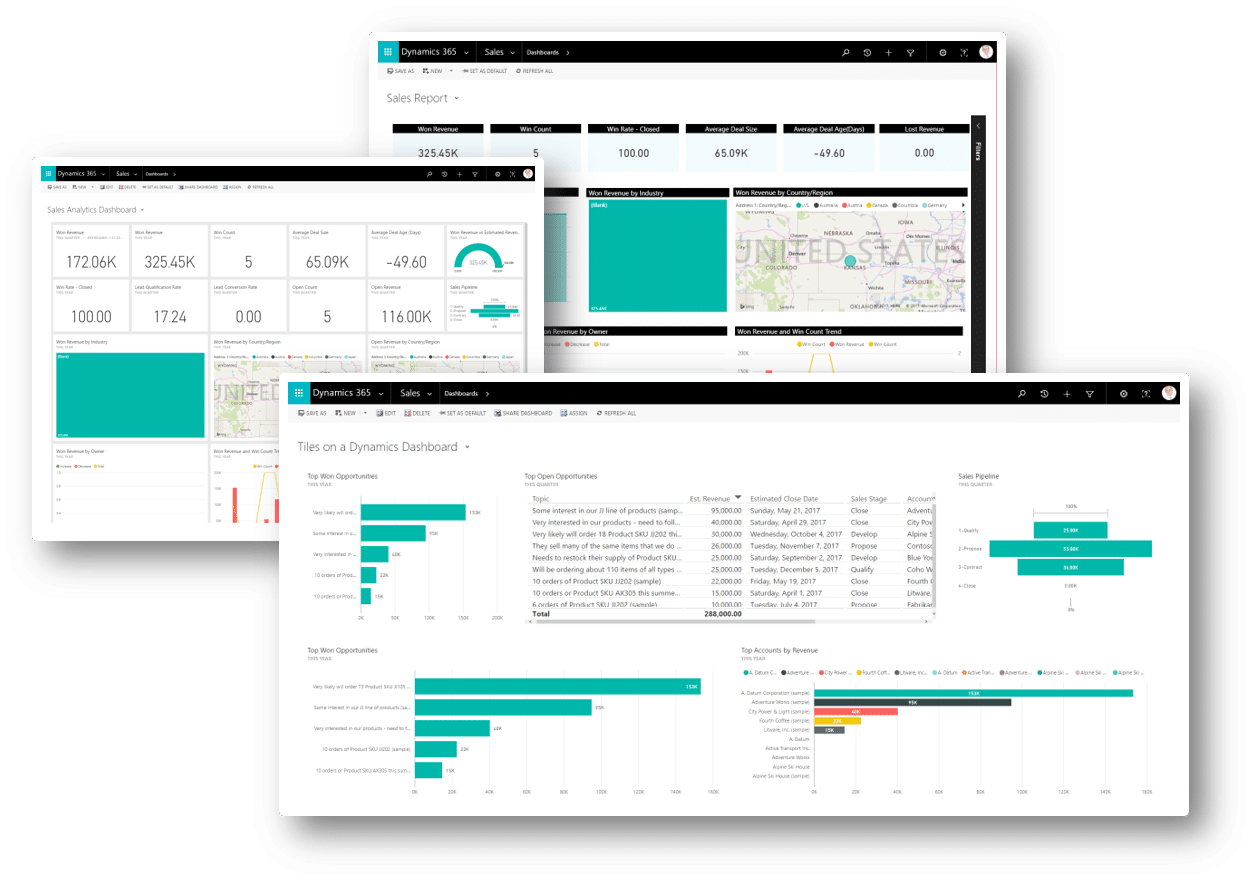
During this 1-day course, you will learn to build Power BI reports that are not just accurate and functional, but also visually compelling. Students will build strong design foundations to enrich their reports by first exploring and then intelligently utilising some handy tools and elements such as conditional formatting, bookmarks, report page tool tips, drill through filters, custom visuals, and more.
Course Code: PBIRD
Duration: 1 Day
‘Power BI Report Design’ Audience
This course benefits new and experienced Power BI professionals who want to become proficient in designing eye-catching reports.
‘Power BI Report Design’ Prerequisites
This Power BI course is suitable for the people who have either completed our Power BI Essentials course or have equivalent skills.
'Power BI Report Design' Modules
Module 1: Design Principles
- How to Communicate a Clear Story
- Creating Aesthetically Pleasing Reports and Dashboards
- Using the Right Visuals
- Information Reading Rule: Left to Right and Top to Bottom
- Report Design Rule: KPI
- Report Design Rule: Summarized Data
- Report Design Rule: Detailed Data
- Best Choice Visuals for Comparison
- Best Choice Visuals to Show Data Distribution
- Visualizing Relationships between Data
- Analysing Data Composition
Module 2: Introduction to Power BI Ecosystem
- Power BI’s Reporting and Authoring Tool
- Using of Different Power BI Components
- Keeping the Ecosystem Updated
- Understanding Parts of a Report
- Sorting and Drilling Through Capabilities
- Introducing the Spotlight
- Understanding the Insights
- Introducing AI Visuals
- Working with Bookmarks
- Understanding Filter Propagation
- Creating a Dashboard
- Understanding Visuals Pane
- Understanding Filters Pane
- Understanding Fields Pane Controls
- Page Navigation in Power BI
- Using Enterprise Power BI Templates
Module 3: Basic Report Elements in Power BI Desktop
- Importing Custom KPI Icon and Image files
- Copying and Pasting Between Reports
- Adding Report Level Measures
- Introduction to the Ribbon Tabs
- Configuring Advanced Preview Options
- Features in Desktop vs. Reports
- Introduction to Various Data Connectors
- Creating Calculated Measures, Columns and Tables
- Creating Hierarchy
Module 4: Developing Reports in Power BI
- Creating the Report File
- Adding Filters and Slicers
- Adding Visuals and Report Elements
- Configuring Theme and Formatting
- Setting the Default User Experience
- Dynamic Column Headers
Module 5: Report Filters and Slicers
- Understanding Filters in Filters Pane
- Using Filters as a Slicer in a Report
- Filtering a Report, Page and Visual
- Understanding Text filtering options
- Categorizing Date and Time Filters
- Understanding Date and Time Filtering Options
- Setting the Filter Status
- Creating Drop Down or List Filters
- Creating Number Filters
- Configuring Multiple Selections
- Editing Interaction between Filters
- Syncing Slicers
- Adding Place Holders
- Setting Background Colours
- Adding Search Menu
- Formatting Options for a Slicer
- Copying Across the Report
- Snapping to Grid
- Configuring Buttons
- Using Selection Pane
- Maintaining Layer Order
- Grouping Items Together
- Working with Time Intelligence Slicers
Module 6: Understanding the Report Elements
- Understanding Report Elements
- Creating Charts/Graphs
- Creating AI Visuals
- Using Card Visual
- Using Spatial Data for Maps
- Introduction to Fields Pane
- Understanding the Format Pane
- Using the Analytics Pane
- Adding Text Box
- Creating Advanced Buttons
- Adding Shapes
- Adding Images
- Creating Card Visual with Icon
- Configuring Ribbon Chart
- Using TopN Filters
- Locking the Filters
- Creating Cluster Bar Chart
- Configuring Tooltips
- Creating Combo Chart
- Creating Line Chart
- Adding Analytics Lines
- Creating Scoreboard
Module 7: Theme and Formatting Options in Power BI
- Introduction to Report Themes and Their Types
- Creating Custom Theme Interface
- Setting the Visual Header Configuration
- Adding Image in Title
- Adding Latest Date
- Creating Multi-Row Card
- Formatting Pages
- Enabling Always-Focus Mode
- Recommended Practices
- Final Formatting Method
Module 8: Premium User Experience
- Configuring Pages
- Adding Slicers and Filters
- Sorting in an Order
- Configuring the Drill through Location
- Difference between Workspace and App User Experience
- User Experience Options Available in Service
- Writing Comments in a Team
- Creating Dynamic Multi-Value Data Labels
- Learning How to Use Charts
- Recommended Practices
- Understanding Paginated Report
Module 9: Conditional Formatting
- Adding Conditional Formatting
- Types of Conditional Formatting
- Adding Data Bars and Icons
- Adding Custom Icon Set
- Adding Web URL
- Using Same Conditions for Multiple Visuals
- Conditions for Histogram Bins
Module 10: Drill Through, Visual Interaction and Slicer Synchronisation
- Navigating From Summary to Detail Pages
- Configuring Cross Filtering
- Keeping Filters
- Setting Visual Interaction
- Duplicating Pages
- Configuring Measure in Filters
- Creating a Decomposition Tree
Module 11: Basic and Advanced Tooltips
- Configuring Tooltips on Visuals
- Enabling Visual Header Tooltip
- Configuring Tool Tip Pages
- Using Smart Narrative Visual
- Adding Emoji in Visuals
- Adding Various Calculations in Smart Narrative
Module 12: Bookmarks
- Quick and Easy Navigation Using Buttons
- Toggle between Charts Using Buttons
- Elements of a Bookmark
- Configuring Button States for User Experience
- Setting Button Effects
- Finding Anomalies in Data
Module 13: Custom Visuals
- Importing Visuals from Marketplace
- Common Visuals in an Organization
- Importing Custom Visuals
- Custom Slicers
- Visual Cues
- Introducing Colour Helper by Okviz – Discuss
- Box and Whisker Chart
Related Courses…






Certified Trainers
All our trainers are Microsoft 365 experts in their own right, and must first be qualified to teach in our own World Education Alliance (WEA) Training Certification Program before delivering any of our courses.
We feel that it is important that all of the trainers and instructors can take their real-world experiences into the classroom, in order to ensure that they are well equipped to respond to any queries and questions which may be put their way, as well as give accurate and relevant guidance in the most appropriate methods to leverage the technology which SharePoint and its related tools provide.
Course Materials Provided
Our Microsoft 365 courseware is known as being some of the best training materials in the world.
FREE Email Support
We offer free post-course support with all of our courses, available via email, telephone, or our Viva Engage community.
FREE Re-sits within 10 Months
Once you've attended any of our public courses, you can re-sit the same course as many times as you like within the next 10 months, as long as your re-sit course has reached the minimum number of paid attendees required to go ahead.
Certificate of Completion
Anyone attending a 3grow course will be provided with a personalised certificate of completion.
Get Hands-on Experience
All 3grow courses include plenty of hands-on experience, delivered via a combination of instructor-led follow-along demos and comprehensive lab exercises.
Personal Class Sizes
Although we allow a maximum of only 10 attendees on our public courses, the average is around 5 students, therefore each participant will leave the course feeling like they received the personal attention they deserve.
Course Inclusions…
Power BI FAQs
What is Power Query?
Power Query is a data connection technology that enables you to discover, connect, combine, and refine data across a wide variety of sources.
What is DAX?
DAX (Data Analysis Expressions) is a formula language used in Power BI for creating custom calculations in your data models.
Can I share my reports and dashboards with others?
Yes, Power BI allows you to publish and share your reports and dashboards with colleagues and stakeholders through Power BI Service.
What types of visualizations can I create in Power BI?
You can create various visualizations including bar charts, line charts, pie charts, maps, and more. The course covers how to customize these visuals to best represent your data.
What is data modeling in Power BI?
Data modeling involves creating relationships between different data tables and using DAX to create calculated columns and measures. This helps in organizing and structuring your data for better analysis.


