
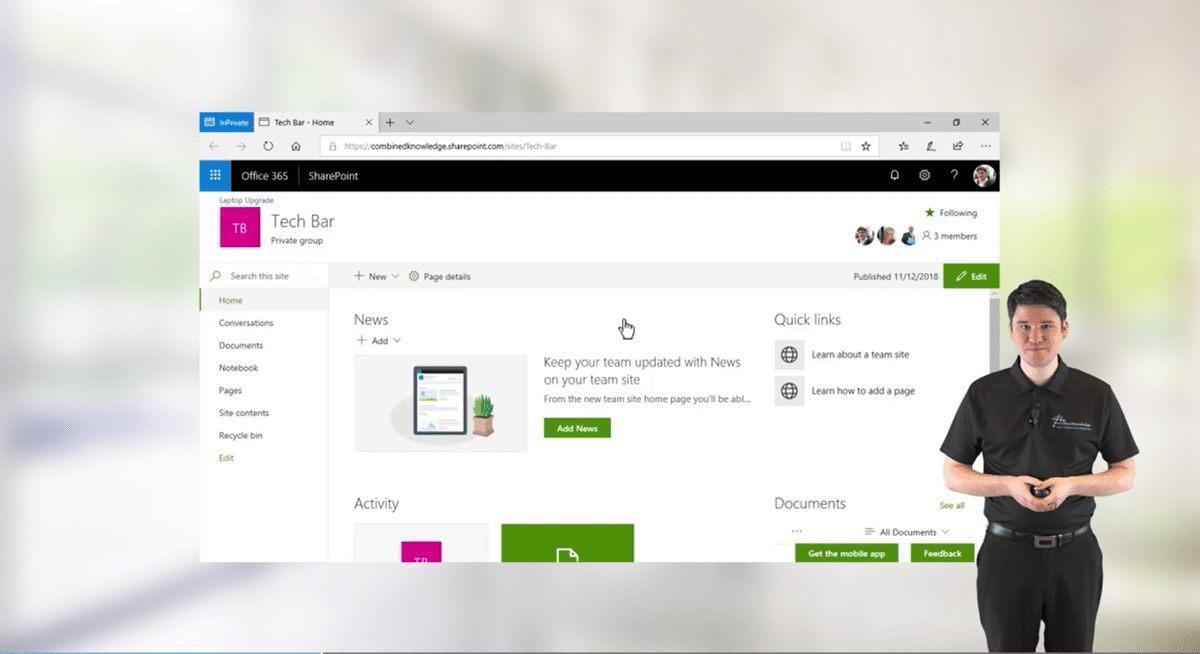
‘SharePoint Online for Power Users’ Overview
This SharePoint Online for Power Users course delivers the complete Site Owner story from start to finish in an engaging and practical way to ensure you have the confidence to plan and create new sites or manage your existing SharePoint Online sites. Your goal is to learn how to make SharePoint relevant to your team by using a sites functionality to help you share information and collaborate with your colleagues. During the class you will also learn best practices and ‘what not to do’ as you watch live, interactive demonstrations and put theory into practice with hands on exercises.
Course Code: SPOPEU
Duration: 4 Days
Audience: Business Users | Power Users
Microsoft Course: 55215
‘SharePoint Online for Power Users’ Prerequisites
This course is aimed at delegates that have had no previous exposure to SharePoint Online or delegates that are very new to SharePoint Online. No previous experience is necessary.
'SharePoint Online for Power Users' Course Modules
Module 1: Introduction to SharePoint Online & Microsoft 365
This module highlights the uses and benefits of SharePoint Online, and provides an overview of the cloud-hosted tools available through Microsoft 365. Using SharePoint Online as a central repository; managing web content; for team collaboration; expansive searching; social networking; automation; and as a business intelligence centre. Also covered, is the diversity of the product versions and what functionality they include. We will also discuss how we will use a realistic scenario throughout the course that will help the delegates to relate to the content. The following topics are also covered:
- Overview of SharePoint Online
- Central Repository for Information
- Web Content Management
- Team Collaboration
- Search
- Social Computing
- Workflows
- Business Intelligence
- SharePoint Versions
- The Training Scenario
- Additional Microsoft 365 tools
Module 2: Finding Content
SharePoint provides the ability to store vast amounts of content in a variety of locations. This module covers a set of tools which help users efficiently locate the information they need.
- Navigation
- Search
- Search Index
- Refinements
- Advanced Search
- People Search
Module 3: Working with Lists
Lists serve as the structure for calendars, discussion boards, contacts, and tasks in SharePoint Online. This module explains the concept of lists, and then reviews popular out-of-the-box options. The operative differences of each option are highlighted through Instructor-led demonstrations. Students learn effective ways to use and contribute to lists. Demonstrations of filters and views highlight usability and efficiency. The following topics are also covered:
- How to Add and Modify Content
- Overview of Default Lists and List Templates
- Add, Modify, and Delete Content in SharePoint Online Lists
- Sort and Filter Content
- Advanced List Features
- Creating & managing list forms
- Use Default and Custom Views
- Working with Rules & Quick Steps
- Exporting a list to Excel
Module 4: Working with Libraries
A document library is a location on a site where you can create, collect, update, and share files with other people. This module explains the benefits of using a library and teaches the student how best to work with documents in a library. The following topics are covered:
- Introduction to document libraries
- Uploading, creating and deleting documents
- Working with folders
- Working with documents in a library
- Checking files in/out
- Versioning settings
- Working with document properties
- Creating & managing views
- Syncing a library to File Explorer
Module 5: Working with Publishing Features
SharePoint Online has a wide array of rich Web Content Management features that can be utilised to support an Intranet site. This module provides delegates with a basic understanding of the options available in a publishing site and how we can leverage modern sites to create a fully responsive Intranet.
- Introducing the Publishing features
- Site Assets library
- Communication Sites
- Hub Sites
- Creating & modifying modern SharePoint pages
- Overview of SharePoint web parts
Module 6: Leveraging Microsoft 365 Social Features
This module covers a selection of topics on the various social networking facilities that are available in SharePoint Online. These features are a new way for SharePoint users collaborate and the successful promotion of these social networking features can really boost business performance. The following topics are covered in this module:
- Introduction Social Networking
- Managing your Microsoft 365 profile
- The Organisation Chart
- The News Feed
- Managing files in OneDrive
- Overview of Viva Engage (formerly Yammer)
Module 7: Site Owner Responsibilities
Site owners are trusted with functionality that would normally be available to developers. As a responsible site owner it is integral to know what your responsibilities are and what are the best practices. This module leads the site management course by discussing the delegates role in creating sites, reasons for creating sites and the importance of securing the site before adding content. The following topics are covered:
- Responsibilities of a Site Owner
- Reasons for Creating a Site
- When to Secure a Site
- Site Content Ownership
Module 8: Creating and Managing Sites
Fundamentally, site collections are composed of sites and different types of pages. In this module students will create each of these components to develop an enhanced understanding of each item’s function and appropriate use. The following lessons are covered:
- Introduction to Site Topology
- When to create a site and where?
- How to Create a new Site
- Communication Sites vs Team Sites
- Microsoft 365 Group-Connected Team Sites
- Connecting sites using Hub Sites
- Site Settings
- Deleting Sites
Module 9: Site Customisation
In this module, students will learn how to customise their sites in order to ensure they’re appropriate laid out, easy to navigate, and meet any necessary branding requirements. The following lessons are covered:
- Look and Feel Settings
- Applying a Site Theme
- Editing the Site Header
- Modifying Navigational Components
Module 10: Permissions and Security
Security is an important element of any site collection. This module includes Instructor-led demonstrations of default groups. Thorough coverage of the use, creation, and application of custom permission levels provide students with comprehensive knowledge about the creation and management of sites. We also focus on security management best practices. The following lessons are covered:
- Introduction to Security in SharePoint
- Permissions, Permission Levels and SharePoint Groups
- Manage User Access to SharePoint Site
- Manage SharePoint Groups and Users
- Breaking Permissions Inheritance within the Site
- The role of Microsoft 365 Groups
- SharePoint Security Best Practices
Module 11: Creating & Managing Lists & Libraries
Maintenance and use of lists and libraries are one of the site owner’s primary responsibilities. Well-constructed lists and libraries save users time and frustration, which translates to an effective gain for organisations. This module covers elements such as views, columns and managed metadata which are fundamental to this construction. Versioning and other library settings which can serve to enhance a list or library are also taught in this module. The following lessons are covered:
- Using list and library apps
- Managing list & library properties
- Creating & managing columns
- Site columns
- Creating & managing views
- Managed metadata
- Configuring advanced list & library settings
Module 12: Advanced Document Management Features
This module covers a selection of topics which were introduced in SharePoint 2010, and provide facilities to help users find, organise and store content. Document IDs provide a method for referencing documents to make them easier to find and share. Document Sets enable users to group related documents in a similar way to folders but with several additional benefits. The following topics are covered:
- Introduction to Document IDs
- Configuring Document IDs
- Introduction to Document Sets
- Configuring Document Sets
Module 13: Power Platform Integration
Microsoft 365 provides a series of tools known as the Power Platform. These tools integrate with SharePoint content, as well as hundreds of other business tools, to provide automation, allow you to build custom apps, and visualise your data through beautifully created reports. Please note that we offer comprehensive courses for all of the Power Platform tools, and this module only provides a brief, high-level overview of the integration with SharePoint content. The following topics are covered:
- Introduction to Power Automate
- Building a simple Power Automate workflow
- Introduction to Power Apps
- Customising list & library forms using Power Apps
- Visualising SharePoint data through Power BI
Module 14: Creating & Managing Content Types
Configuration of Content Types allows Site Collection Administrators and Site Owners to group attributes such as metadata, workflows and document templates into functional components. These Content Types can be managed in a dedicated site collection so that they can be shared across the entire SharePoint farm. This functionality allows for an enhanced user experience and reduced administrative overhead. The following lessons are also covered:
- Introduction to Content Types
- Creating & managing site Content Types
- Content type settings
- Document Sets
- Organisation-wide Content Types
- Deploying Content Types
Karren Brown
I was very impressed with the training course, and I would certainly recommend 3grow. Russ was well versed in all aspects of SharePoint – informative and entertaining at the same time
Steve McKee
Have always felt Russ has been the most helpful in these subjects against all the other resources and tutorials I have tried along the way. Nothing beats instruction from someone who has the breadth of experience Russ has and his ability to answer our questions is invaluable.
Farnoud Jayranlou
The instructor was awesome, especially when providing tips & ideas about specific company scenarios. I would recommend 3grow, as I like the idea of having help & support available after the course is complete
Related Courses...







Course Inclusions...
Certified Trainers
All our trainers are Microsoft 365 experts in their own right, and must first be qualified to teach in our own World Education Alliance (WEA) Training Certification Program before delivering any of our courses.
We feel that it is important that all of the trainers and instructors can take their real-world experiences into the classroom, in order to ensure that they are well equipped to respond to any queries and questions which may be put their way, as well as give accurate and relevant guidance in the most appropriate methods to leverage the technology which SharePoint and its related tools provide.
Course Materials Provided
Our Microsoft 365 courseware is known as being some of the best training materials in the world.
FREE Email Support
We offer free post-course support with all of our courses, available via email, telephone, or our Viva Engage community.
FREE Re-sits within 10 Months
Once you've attended any of our public courses, you can re-sit the same course as many times as you like within the next 10 months, as long as your re-sit course has reached the minimum number of paid attendees required to go ahead.
Certificate of Completion
Anyone attending a 3grow course will be provided with a personalised certificate of completion.
Get Hands-on Experience
All 3grow courses include plenty of hands-on experience, delivered via a combination of instructor-led follow-along demos and comprehensive lab exercises.
Personal Class Sizes
Although we allow a maximum of only 10 attendees on our public courses, the average is around 5 students, therefore each participant will leave the course feeling like they received the personal attention they deserve.


