

'Microsoft Power Automate' Course Overview
This Power Automate training course delivers an instructor-led product showcase for Microsoft Power Automate (formerly Flow) from start to finish in an engaging and practical way. Power Automate is a diverse product, turning business processes into automated, consistent and visual workflows. Power Automate is designed to interweave the various products in Microsoft 365 as well as connect to other on-premises and web-based solutions. This course will give you the confidence to select the right actions and workflow logic for your business workflows.
Course Code: MSFLOW
Duration: 1 Day
Audience: End Users & Developers
‘Power Automate’ Training Audience
The intended audience for this course would be those who have been using Microsoft 365 for some time and are now looking at optimising their existing business processes and designing new ones.
‘Power Automate’ Training Prerequisites
Delegates should have prior experience of using Microsoft 365, including working with OneDrive, SharePoint lists & libraries, and content approval processes to a reasonably advanced level.
We recommend taking a look at the following courses:
'Microsoft Power Automate' Course Modules
Module 1: An Introduction to Microsoft Power Automate Training
Let’s get started with an introduction to Microsoft Power Automate. Historically, automating business processes typically landed in the lap of a developer in the business, who has a good understanding of coding and the systems that they were connecting. However, more and more systems deployed to businesses are encouraging a bigger focus on end user design and management. With this culture change, end users are looking to further improve their business solutions. Power Automate brings workflow design to all audiences. It offers the building blocks for lightweight or business-critical processes. In this module, we cover an overview of the product and its application to Office 365 and third-party services.
- What is Microsoft Power Automate?
- The benefits of automation
- How to get to Power Automate
Module 2: Getting Started with Power Automate
We begin our discovery of Microsoft Power Automate by building our first business process. We will discuss how to use templates to get started with Power Automate or how to use a blank template to start with no defined actions. Once in the product, we will give you a tour of the editor, workflow management page and the home screen to help you navigate around the product. Next, we will start to add, edit and remove actions from our workflow template in order to customise the workflow for a specific business need. Once ready we will publish and trigger the workflow to test that it works as expected. We will finish this module by discussing how to turn a workflow on or off as well as deleting a workflow.
- Using Power Automate templates
- Navigating in Power Automate
- Editing a Workflow
- Publish and trigger a Workflow
- Turn off or delete a Workflow
Module 3: Workflow Logic
Decision making during a business process is often a bottleneck. Waiting for decisions or information to steer the workflow towards its goal is dependent on how long the involved party spends on the task. This could be mitigated if the desired information is found declared elsewhere for example, as a document property or a form entry to name a few examples. Logic in a workflow allows existing information to push the workflow down multiple paths. This often speeds up workflow duration and minimizes human input. In this module, we will look at the core logic found in Power Automate and a practical application of each option.
- Adding conditions
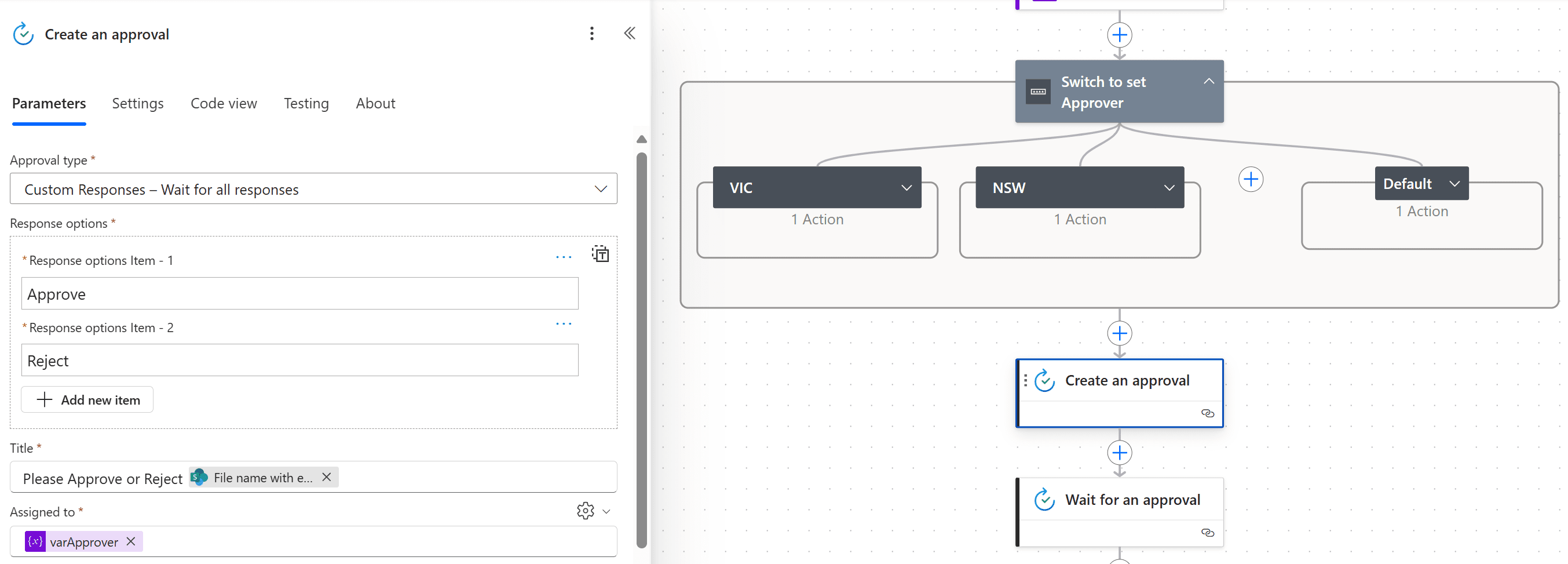
- Designing switches
- Using apply to each
- Configuring do until logic
- Adding a scope
Module 4: Integration
Businesses will often user a selection of productivity tools and services beyond Office 365. Marketing teams may use Facebook and Twitter whereas a sales team may use Salesforce to manage their customers. Power Automate provides connectors for popular services allowing your processes to extend beyond Office 365 to other web services. Connections can even be made to on-premises servers, allowing your business systems house at the office to take part in your processes.
- Standard and premium connectors
- Connecting to web services
- Using Power Automate with on-premises data
Module 5: The Power Automate Mobile App
Power Automate has a corresponding mobile app that can be used to leverage many features of Power Automate. Firstly, it offers users the capability to build new workflows, directly from their phone or tablet. Secondly, it can be used to manage existing flows including editing, viewing history, saving a copy, disabling and deleting workflows. You can access any approvals that have been sent to you by Power Automate and approve or reject decisions. The app also supports the push notifications that can be sent to your phone or tablet from a workflow. Additionally, you can even create buttons that appear in the app which allow you to trigger workflows. This valuable app will be detailed in this module.
- Downloading the mobile app
- Signing in and account management
- Building and managing workflows
- Creating buttons
- Feeds and approvals
Module 6: Administration and Maintenance
In our last module for Microsoft Power Automate, we will be taking a look at how a business can manage their workflows once they have a good uptake of the product. We will begin by discussing managing individual workflows. This could be using history to discover the source of any issues and implement error handling as well as using the analytics to discover usage trends. We will discover how to share a workflow which is ideal for sharing the maintenance of a workflow with another colleague and how to import and export workflows. Finally, we will discuss how Microsoft 365 administrators can shape the Power Automate experience with high-level settings that help ensure data segregation and security.
- Maintaining a Workflow
- View history and analytics
- Sharing a Workflow
- Export and import Workflows
- Microsoft 365 administration for Power Automate
- Environments
- Data policies
- Data integration
Peter Dobson
Russ did a great job fielding all types of questions
Steve McKee
Great to be able to learn this with Russ as instructor. He knows the material so well and is able to apply his knowledge to the problems we ask about in our own situations.
Catherine Allen
He was brilliant and really new his stuff. He was very helpful with me because I wasn’t at the same level as many of them in the class.
Related Courses...









Course Inclusions...
Certified Trainers
All our trainers are Microsoft 365 experts in their own right, and must first be qualified to teach in our own World Education Alliance (WEA) Training Certification Program before delivering any of our courses.
We feel that it is important that all of the trainers and instructors can take their real-world experiences into the classroom, in order to ensure that they are well equipped to respond to any queries and questions which may be put their way, as well as give accurate and relevant guidance in the most appropriate methods to leverage the technology which SharePoint and its related tools provide.
Course Materials Provided
Our Microsoft 365 courseware is known as being some of the best training materials in the world.
FREE Email Support
We offer free post-course support with all of our courses, available via email, telephone, or our Viva Engage community.
FREE Re-sits within 10 Months
Once you've attended any of our public courses, you can re-sit the same course as many times as you like within the next 10 months, as long as your re-sit course has reached the minimum number of paid attendees required to go ahead.
Certificate of Completion
Anyone attending a 3grow course will be provided with a personalised certificate of completion.
Get Hands-on Experience
All 3grow courses include plenty of hands-on experience, delivered via a combination of instructor-led follow-along demos and comprehensive lab exercises.
Personal Class Sizes
Although we allow a maximum of only 10 attendees on our public courses, the average is around 5 students, therefore each participant will leave the course feeling like they received the personal attention they deserve.
Who Should Attend?
Our Power Automate Training is ideal for:
- IT professionals looking to automate repetitive tasks and integrate systems.
- Business analysts seeking to optimise workflows and improve efficiency.
- Project managers who need to streamline project-related processes.
- Any individual or team aiming to leverage Microsoft 365's full potential for business automation.
Power Automate Training Outcomes
By the end of our Power Automate Training, you will be able to:
- Understand the fundamentals of Microsoft Power Automate and its capabilities.
- Create and manage automated workflows to streamline business processes.
- Integrate Power Automate with other Microsoft 365 services such as SharePoint, Teams, and OneDrive.
- Utilise advanced features like condition-based workflows, loops, and approvals.
- Connect Power Automate to third-party applications and on-premises systems.
- Monitor and troubleshoot workflows to ensure they run smoothly.


