

‘Microsoft Word Intermediate’ Overview
This 1 day course extends on the basics of Microsoft Word and helps students create more complex and varied documents. Existing skills and knowledge are enhanced by covering more complex aspects of formatting, building blocks, tables and lists, and introduces new features such as mail merge, sections, styles, Themes, Word Art and more.
Course Code: WRDINT
Duration: 1 Day
‘Microsoft Word Intermediate’ Audience
This course is suitable for participants with some Microsoft Word experience and who wish to take their skills to the next level. Upon successful completion of this course, participants will have enough skills to be able to work with tables, create drawings, perform mail merges and improve productivity with a range of automation features.
‘Microsoft Word Intermediate’ Prerequisites
Participants should have already completed Word for Beginners course before attending this course or have equivalent skills.
'Microsoft Word Intermediate' Modules
Module 1: Formatting Techniques
- Applying First Line Indents
- Applying Hanging Indents
- Applying Right Indents
- Understanding Pagination
- Controlling Widows and Orphans
- Keeping Paragraphs Together
- Keeping Lines Together
- Inserting a Page Break
- Applying Hyphenation to Text
- Hiding Text
- Inserting a Drop Cap
- Understanding Returns
- Inserting Hard and Soft Returns
- Removing Returns
- Revealing Formatting
Module 2: Tables
- Understanding Tables
- Creating a Table
- Adding Data to a Table
- Selecting in Tables Using the Ribbon
- Selecting in Tables Using the Mouse
- Inserting Columns and Rows
- Deleting Columns and Rows
- Changing Column Widths
- Changing Row Heights
- Autofitting Columns
- Shading Cells
- Modifying Borders
- Adding Custom Borders
- Choosing a Table Style
Module 3: Table Features
- Creating a Table from Text
- Aligning Data in Cells
- Displaying Table Gridlines
- Inserting Formulas into a Table
- Updating Formulas in a Table
- Sorting Table Data
- Merging Table Cells
- Splitting Table Cells
- Understanding Table Properties
- Aligning Tables
- Changing the Direction of Text
- Repeating Heading Rows
- Converting a Table to Text
Module 4: Building Blocks
- Understanding Building Blocks
- AutoText Versus Quick Parts
- Inserting a Building Block
- Creating Quick Parts
- Saving Building Blocks
- Inserting Quick Parts
- Editing Building Blocks
- Deleting Building Blocks
Module 5: Styles
- Understanding Styles
- Applying Paragraph Styles
- Applying Character Styles
- Creating a Quick Style
- Creating a Paragraph Style
- Creating a Character Style
- Applying Custom Styles
Module 6: Headers and Footers
- Understanding Headers and Footers
- Inserting Headers and Footers
- Inserting a Blank Header
- Inserting a Blank Footer
- Switching Between Headers and Footers
- Editing Headers and Footers
- Inserting Page Numbering
- Inserting Date Information
- Inserting Document Properties
- Formatting Header and Footer Text
Module 7: Pictures
- Understanding Pictures
- Understanding Online Pictures
- Inserting a Picture
- Inserting an Online Picture
- Selecting Pictures
- Positioning Pictures
- Applying Text Wrapping Styles
- Resizing a Picture
- Applying Picture Styles to Pictures
- Resetting Pictures
- Changing the Picture
- Cropping a Picture
- Deleting Pictures
Module 8: Shapes
- Understanding Shapes
- Drawing Shapes
- Selecting Shapes
- Resizing Shapes
- Moving Shapes
- Aligning Shapes
- Rotating Shapes
- Grouping Shapes
- Arranging Shapes
- Deleting Shapes
- Applying a Fill to the Drawing Canvas
- Applying Text Wrapping to a Canvas
Module 9: Page Techniques
- Inserting a Cover Page
- Inserting a Blank Cover Page
- Inserting a Watermark
- Creating a Watermark
- Removing a Watermark
- Applying Page Colours
- Applying a Page Border
- Applying Lines to a Page
Module 10: Performing a Mail Merge
- Understanding Mail Merge
- Understanding the Mail Merge Process
- Creating a Recipient List
- Creating the Starting Document
- Starting the Mail Merge Wizard
- Selecting a Recipient List
- Inserting Mail Merge Fields
- Previewing the Merged Documents
- Completing the Merge
Module 11: Mail Merge Techniques
- Running a Saved Merge
- Excluding Recipients
- Filtering Recipients
- Sorting Recipients
- Selecting Another Data Source
- Applying an if Then Else Rule
- Applying a Fill in Rule
Module 12: Importing
- Understanding Importing
- Importing Text
- Importing Excel Data
- Importing and Linking Excel Data
- Importing and Embedding Excel Data
- Modifying Embedded Excel Data
- Inserting a Hyperlink to External Data
- Understanding Hyperlinking Options
- Using Hyperlinks
Module 13: WordArt
- Understanding WordArt
- Applying WordArt
- Positioning WordArt
- Editing WordArt Text
- Formatting WordArt Text
- Applying Text Effects
- Deleting WordArt
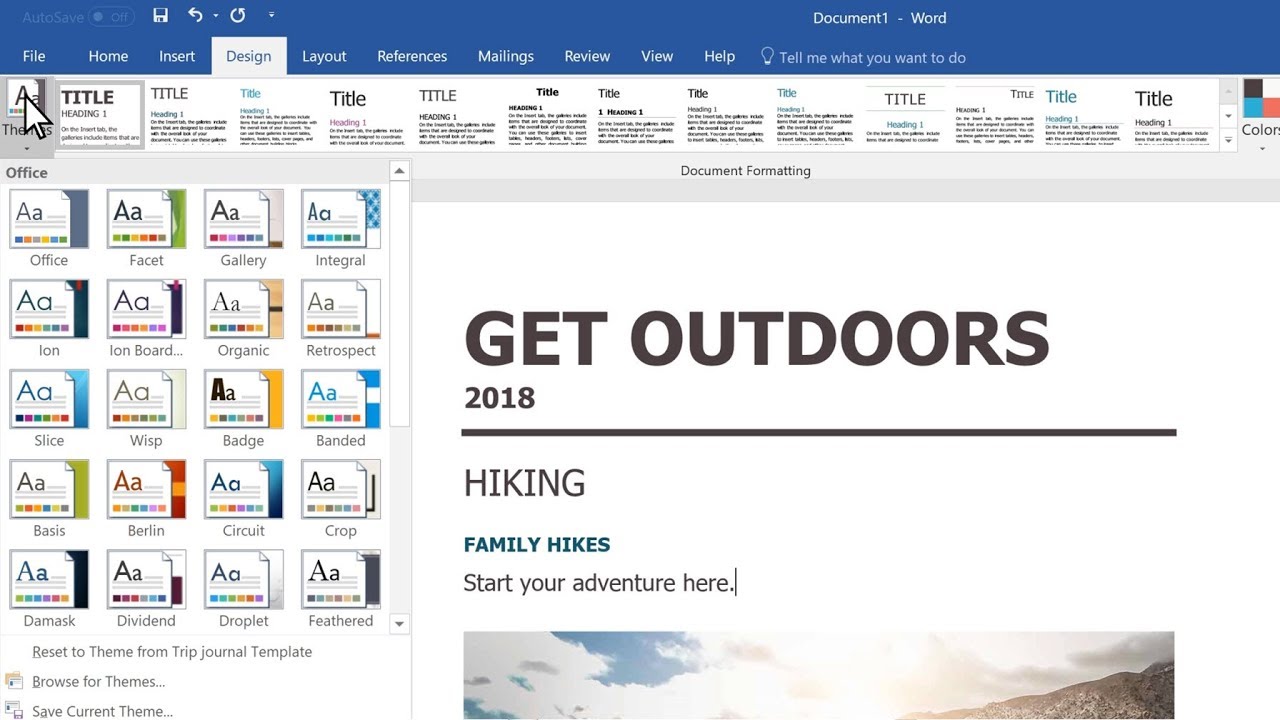
Module 14: Themes
- Understanding Themes
- Applying a Theme
- Modifying Theme Colours
- Modifying Theme Fonts
- Creating a Custom Theme
- Applying a Theme to a Template
- Resetting a Theme
Why Take a Microsoft Word Intermediate Course?
If you’re confident using the basics of Word but want to create more professional and productive documents, this course is your next step. Our Microsoft Word Intermediate course helps users streamline document creation, apply consistent formatting with styles, master tables and lists, and learn valuable tools like mail merge, themes, headers and footers, and WordArt. It’s ideal for business users, admin teams, educators, and anyone who works with Word documents regularly.
What You’ll Learn in Microsoft Word Intermediate
- Use advanced formatting tools including drop caps and hyphenation
- Create and customise tables with formulas and sorting
- Save time with Quick Parts, building blocks, and reusable styles
- Manage graphics, WordArt, and drawing tools
- Design consistent headers, footers, cover pages, and themes
- Perform mail merges with filters, rules, and data sources
Frequently Asked Questions
Is Word Intermediate suitable if I’ve only used Word casually?
Yes — this course bridges the gap between beginner and advanced. If you’re familiar with basic text editing and saving documents, this is the perfect next step.
What version of Word is the course based on?
This course focuses on Microsoft Word for Microsoft 365 but is compatible with Word 2019 and newer. Some features may vary slightly.
Can I take this course online?
Yes! All of our Microsoft Word courses are available as live, interactive online sessions or in-person workshops across Australia and New Zealand.
Will I receive a certificate?
Yes. You’ll receive a Certificate of Completion from 3grow, Australia’s only training provider dedicated exclusively to Microsoft 365 training.
Just getting started? Try our Word for Beginners course.
Want to go further? Explore our Word Advanced course.
See our full range of Microsoft 365 training courses.
Related Courses…





Course Inclusions…
Certified Trainers
All our trainers are Microsoft 365 experts in their own right, and must first be qualified to teach in our own World Education Alliance (WEA) Training Certification Program before delivering any of our courses.
We feel that it is important that all of the trainers and instructors can take their real-world experiences into the classroom, in order to ensure that they are well equipped to respond to any queries and questions which may be put their way, as well as give accurate and relevant guidance in the most appropriate methods to leverage the technology which SharePoint and its related tools provide.
Course Materials Provided
Our Microsoft 365 courseware is known as being some of the best training materials in the world.
FREE Email Support
We offer free post-course support with all of our courses, available via email, telephone, or our Viva Engage community.
FREE Re-sits within 10 Months
Once you've attended any of our public courses, you can re-sit the same course as many times as you like within the next 10 months, as long as your re-sit course has reached the minimum number of paid attendees required to go ahead.
Certificate of Completion
Anyone attending a 3grow course will be provided with a personalised certificate of completion.
Get Hands-on Experience
All 3grow courses include plenty of hands-on experience, delivered via a combination of instructor-led follow-along demos and comprehensive lab exercises.
Personal Class Sizes
Although we allow a maximum of only 10 attendees on our public courses, the average is around 5 students, therefore each participant will leave the course feeling like they received the personal attention they deserve.


