

‘Microsoft Project Essentials’ Overview
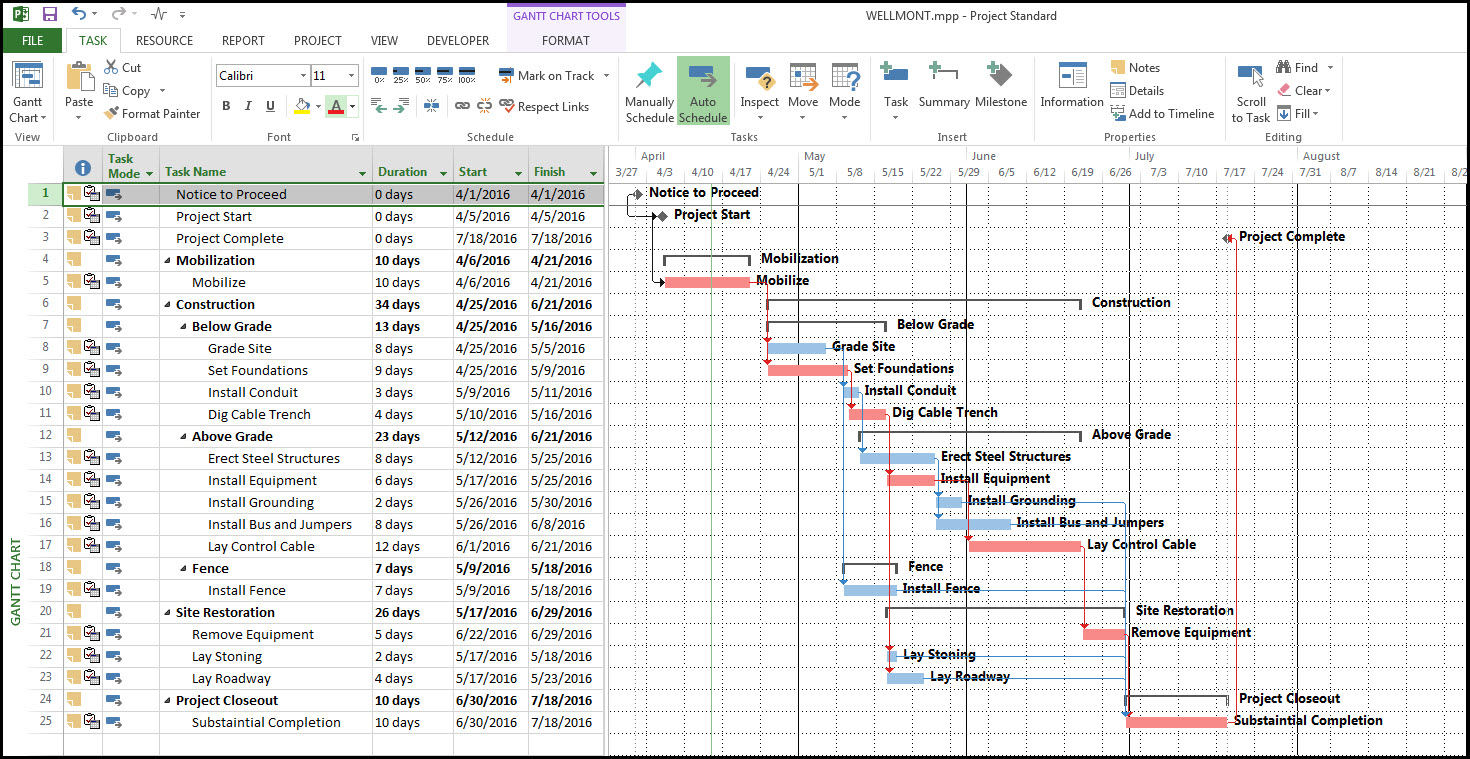
The skills and knowledge acquired in this 2-day Microsoft Project essentials course are sufficient for the learner to be able to create a new project, enter and work with tasks and resources, create a schedule, and print effective project information.
Course Code: PRJESS
Duration: 2 Days
‘Microsoft Project Essentials’ Audience
This course is intended for people who wish to learn how to use Microsoft Project to manage a range of projects, from small to large scale. Upon successful completion of the course, students should be capable of using Project to deal with tasks and resources, and in particular be able to handle problem areas that often arise when using a computer to help manage projects.
‘Microsoft Project Essentials’ Prerequisites
Participants need little or no knowledge of Microsoft Project, however it would be beneficial to have a general understanding of personal computers and the Windows operating system. If you already have previous knowledge of Microsoft Project and looking to exoand your knowledge you might want to try Microsoft Project Advanced
'Microsoft Project Essentials' Modules
Module 1: Getting to Know Microsoft Project
- How Microsoft Project Works
- Starting Project in Windows 10
- Understanding the Project Start Screen
- The Project Screen
- Project Operations
- Using the Ribbon
- Showing and Collapsing the Ribbon
- Understanding the Backstage
- The Project Work Area
- Working With Views
- Working With Split Screens
- Understanding Sheet Views
- Working With Tables
- Gantt Chart View
- Working With Gantt Charts
- Understanding the QAT
- Working With the QAT
- Working With Project Files
- Exiting From Project
Module 2: Project Management
- Tasks and Resources
- The Importance of Planning
- Understanding the Gantt Chart
- Computers and Project Management
Module 3: Creating a New Project
- Steps in Creating a Project
- Understanding Your Project
- Creating a New Project File
- Calendar Options
- Changing Calendar Options
- Working With Calendars
- Modifying the Standard Calendar
- Entering Public Holidays
- Creating a New Resource Calendar
- Creating a New Task Calendar
- Setting Up Project Information
- Entering File Properties
Module 4: Creating Tasks
- Understanding Tasks
- Understanding Scheduling Icons
- Case Study Tasks
- Reviewing the Project
- Entering Tasks
- Creating Summary Tasks
- Assignment – Creating Summary Tasks
- Working in a Sheet View
- Working With Summary Tasks
- Working With Task Views
- Examining Task Information
- Understanding Task Durations
- Entering Task Durations
- Checking Progress
- Entering Milestones
- Assigning a Calendar to a Task
Module 5: Scheduling
- Understanding Task Dependencies
- Creating Dependencies Automatically
- Creating Dependencies in Task Entry
- Creating Dependencies in Task Information
- Creating Dependencies in a Sheet View
- Modifying a Schedule Using Dependencies
- Auto Scheduling Tasks
- Critical Path and Project Slack
- Viewing the Critical Path
- Examining Task Slack
- Understanding Lag Time
- Entering Lag Time
- Understanding Lead Time
- Entering Lead Time
- Inactivating a Task
Module 6: Resourcing a Project
- Understanding Resources
- Entering Work Resources
- Entering Material Resources
- Entering Cost Resources
- Assigning Calendars to Resources
- Understanding Resource Availability
- Adjusting Resource Availability
- Changing the Unit Display
Module 7: Resourcing Concepts
- Resource Assignment Calculations
- Task Types and Work Effort
- Creating a Simple Assignment
- Working With Fixed Unit Tasks
- Working With Fixed Duration Tasks
- Making Multiple Assignments
- Adding Additional Resources
- Adding More of the Same Resource
- More Resources in Multiple Assignments
- Understanding Effort Driven Scheduling
- Working With Non Effort Driven Tasks
- Working With Effort Driven Tasks
- Resource Assignment Summary
Module 8: Assigning Resources
- Simple Resource Assignments
- Assigning Part Time Resources
- Understanding Work Contouring
- Specifying Resource Usage
- Contouring Work Hours
- Assigning Specific Work Times
- Work Times for Multiple Assignments
- Problem Assignments
- Assigning Resources in Task Information
- Assigning Resources in a Sheet
- Assigning Resources You Do Not Have
- The Case Study Resources
Module 9: Resource Levelling
- Understanding Resource Levelling
- Creating Resource Problems
- Tracking Down Over Allocations
- Checking Resource Usage
- Creating an Over Allocation Report
- Changing Work Effort
- Understanding Overtime
- Assigning Overtime
- Hiring Contract Labour
- Switching Work Assignments
- Rescheduling Tasks
Module 10: Assigning Materials
- Assigning Fixed Material Consumption
- Contouring Materials Usage
- Adding More Material Assignments
- Assigning Variable Usage Material
- Adding to a Material Assignment
- Checking Work for Materials
Module 11: Costs
- Understanding Project Costs
- Reviewing Current Costs
- Entering Variable Costs
- Case Study Variable Costs
- Assigning Daily Costs
- Assigning Per Usage Costs
- Assigning Fixed Costs
- Assigning Material Costs
- Using Another Cost Table
- Applying a Different Cost Table
- Changing Rates During a Project
- Assigning Cost Resources
- Viewing Project Costs
Module 12: Constraints and Deadlines
- Understanding Constraints and Deadlines
- Reviewing Our Project
- Adding a Constraint
- Using Elapsed Time
- Rescheduling Tasks
- Creating a Deadline
- Moving a Project’s Start Date
Module 13: Project Tracking
- Creating a Baseline
- Automatically Updating Tasks
- Manually Updating Tasks
- Entering Delayed Tasks
- Tracking Actuals on a Gantt Chart
- Using the Tracking Box
- Viewing Task Slippage
Module 14: Printing
- Understanding Printing
- Previewing Before You Print
- Selecting a Printer
- Printing a Gantt Chart
- Printing Sheet Views
- Printing Tasks for Resources
- Printing Resources for Tasks
Module 15: Getting Help
- Understanding How Help Works
- Using Tell Me
- Accessing the Help Window
- Navigating the Help Window
- Using Google to Get Help
- Printing a Help Topic
- Other Sources of Assistance
Related Courses…





Course Inclusions…
Certified Trainers
All our trainers are Microsoft 365 experts in their own right, and must first be qualified to teach in our own World Education Alliance (WEA) Training Certification Program before delivering any of our courses.
We feel that it is important that all of the trainers and instructors can take their real-world experiences into the classroom, in order to ensure that they are well equipped to respond to any queries and questions which may be put their way, as well as give accurate and relevant guidance in the most appropriate methods to leverage the technology which SharePoint and its related tools provide.
Course Materials Provided
Our Microsoft 365 courseware is known as being some of the best training materials in the world.
FREE Email Support
We offer free post-course support with all of our courses, available via email, telephone, or our Viva Engage community.
FREE Re-sits within 10 Months
Once you've attended any of our public courses, you can re-sit the same course as many times as you like within the next 10 months, as long as your re-sit course has reached the minimum number of paid attendees required to go ahead.
Certificate of Completion
Anyone attending a 3grow course will be provided with a personalised certificate of completion.
Get Hands-on Experience
All 3grow courses include plenty of hands-on experience, delivered via a combination of instructor-led follow-along demos and comprehensive lab exercises.
Personal Class Sizes
Although we allow a maximum of only 10 attendees on our public courses, the average is around 5 students, therefore each participant will leave the course feeling like they received the personal attention they deserve.


