

‘Microsoft Project Advanced’ Overview
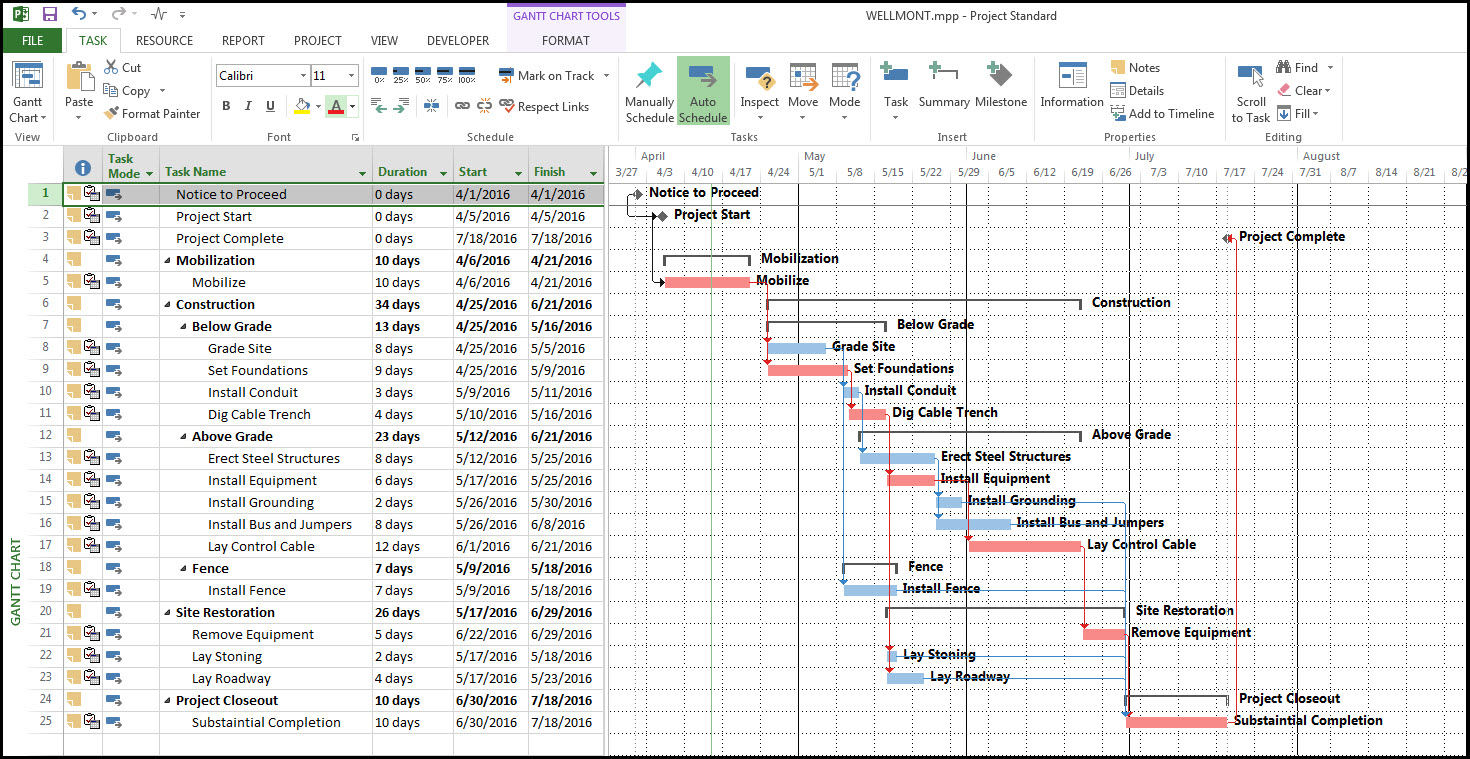
The skills and knowledge acquired in this Microsoft Project Advanced course will build on the basic skills of creating a project, and include skills such as working with project files, project and file linking, printing and reporting, project downsizing, sharing resources, and using Project VBA to automate operations.
Course Code: PRJADV
Duration: 2 Days
‘Microsoft Project Advanced’ Audience
This course is designed for users of Microsoft Project who want to take their skills beyond creating simple projects. It is particularly suited to Microsoft Project users who work with multiple projects and have a need to produce elaborate and detailed reports.
‘Microsoft Project Advanced’ Prerequisites
Participants should have completed the Project Essentials course or have equivalent knowledge prior to commencing this course. This course assumes that the participant can create basic projects using Microsoft Project, including entering tasks and resources, resolving resourcing conflicts, and working with the various views. A reasonable understanding of file management techniques in the Windows environments is also required.
'Microsoft Project Advanced' Modules
Module 1: Project Views
- Understanding Project Views
- Working With the Standard Views
- Creating Split Views
- Creating a Custom View
- Creating a Custom Combination View
- Using Custom Views
- Customising the View Menus
- Saving an Existing View
- Deleting Unwanted Views
- Keeping New Views Local
- Working With Multiple Files
- Hiding Open Files
Module 2: Tables
- Exploring Tables
- Creating a New Table
- Adding Fields Using Add New Column
- Adding Fields Using Insert Column
- Adding Simple Custom Fields
- Formatting Table Fields
- Creating a Simple Lookup Table
- Using a Custom Table
- Using a Hyperlink Field
Module 3: Controlling Project Data
- Understanding the Data Tools
- Basic Data Highlighting
- Highlighting Date Ranges
- Highlighting a Range of Tasks
- Highlighting Tasks With Specific Resources
- More Highlight Filters
- Applying Filters
- Creating a Custom Filter
- Using a Custom Filter
- Editing Existing Filters
- Deleting an Unwanted Filter
- Grouping Tasks
- Using AutoFilters
Module 4: Formatting Projects
- Understanding the Timescale
- Changing Time Periods
- Showing Tiers
- Modifying Specific Tiers
- Formatting for Non-Working Time
- Changing Text Styles
- Working With Gridlines
- Displaying Progress Lines
- Working With Progress Lines
- Changing the Layout
- Understanding Gantt Chart Bars
- Changing Gantt Chart Styles
- Changing Bar Text
- Formatting Selected Bars
- Changing Bar Styles
Module 5: Advanced Printing
- Placing Printing Commands on the Ribbon
- Using Print Preview
- Setting Page Breaks
- Printing Specific Dates and Pages
- Printing Headers
- Printing Footers
- Working With the Legend
- Getting the Right Report Fit
- Exporting to PDF
Module 6: Graphical Reports
- Understanding Graphical Reports
- How Graphical Reports Work
- Running a Report
- Formatting Chart Objects
- Manipulating Report Data
- Filtering Report Data
- Cloning an Existing Report
- Creating a New Report
- Enhancing Report Appearance
- Making Reports Global
- Removing Unwanted Reports
Module 7: Project Templates
- Understanding Project Templates
- Examining the Templates
- Saving a Project as a Template
- Using a Custom Project Template
- Specifying the Personal Templates Folder
- Using the Personal Template Folder
- Modifying a Template
- Understanding the Global Template
- Organising the Global Template
- Applying a Newly Organised Item
- Removing Items From the Global Template
Module 8: Linking and Combining Projects
- Understanding Linked Projects
- Combining Projects
- Viewing a Combined Project
- Printing From a Combined Project
- Setting a Combined Project Start Date
- Changing Data in a Combined Project
- Saving and Closing a Combined Project
- Using Only the Combined Project File
- Using Only Subproject Files
- Inserting Subprojects
- Breaking Subproject Links
- Creating a Read Only Subproject
- Inserting Task Links
- Creating a Summary Milestone
Module 9: Shared Resources
- Understanding Resource Sharing
- Creating a Common Resource Pool
- Linking to an External Pool
- Linking a New Project File to the Pool
- Assigning Resources From the Pool
- Working With Shared Resources
- Checking for Resource Links
- Managing Shared Resources
- Opening Shared Resource Projects
- Opening the Resource Pool Only
- Assembling a Resource Master
- Working With a Resource Master
Module 10: Downsizing Larger Projects
- Understanding Project Downsizing
- Creating the Resource File
- Creating Smaller Projects
- Linking Subprojects to Resources
- Preparing for the Master Project
- Creating the Downsized Master File
- Setting Project Links
- Finalising the Master
Module 11: Other Applications
- Understanding Working With Applications
- Copying a Gantt Chart Image
- Copying Table Data
- Copying to Microsoft Excel
- Linking to Microsoft Excel
- Exporting to Microsoft Excel
- Exporting to Excel Using a Map
- Importing Data From Excel
Module 12: Microsoft Project VBA
- Understanding Project VBA
- Accessing the Developer Tab
- Recording a Macro
- Running a Macro
- Editing a Macro
- Running an Edited Macro
- Localising a Macro
- Running a Localised Macro
Module 13: Custom Fields
- Understanding Custom Fields
- Creating Custom Fields
- Inserting Custom Fields
- Creating a Formula in a Custom Field
- Modifying a Formula
- Testing a Formula
- Understanding Graphical Indicator Custom Fields
- Creating Graphical Indicator Custom Fields
- Creating a Lookup Custom Field
- Creating an Outline Code Mask
- Entering Lookup Table Values
- Using a Lookup Table
Module 14: WBS Codes
- Understanding WBS Codes
- Creating WBS Codes
- Altering Tasks With Custom WBS Codes
- Renumbering WBS Codes
- Editing Custom WBS Codes
Module 15: Visual Reports
- Understanding Visual Reports
- Understanding Excel Visual Reports
- Creating a Visual Report From a Template
- Choosing Fields to Display in a Visual Report
- Changing the X Axis Categories
- Filtering a Visual Report
- Formatting a Visual Report
- Saving a Visual Report as a Template
- Using a Custom Visual Report Template
Module 16: Custom Views
- Preparing for the Custom View
- Creating a Custom Filter for the View
- Creating a Custom Group for the View
- Creating a Custom Table for the View
- Creating the Custom View
- Removing a Custom View and Its Components
Module 17: Working Collaboratively
- Understanding Collaboration Options
- Adding a Contact as a Resource
- Working With a Contact Resource
- Syncing Tasks With SharePoint
- Working With a Synced Task List
Related Courses…



Course Inclusions…
Certified Trainers
All our trainers are Microsoft 365 experts in their own right, and must first be qualified to teach in our own World Education Alliance (WEA) Training Certification Program before delivering any of our courses.
We feel that it is important that all of the trainers and instructors can take their real-world experiences into the classroom, in order to ensure that they are well equipped to respond to any queries and questions which may be put their way, as well as give accurate and relevant guidance in the most appropriate methods to leverage the technology which SharePoint and its related tools provide.
Course Materials Provided
Our Microsoft 365 courseware is known as being some of the best training materials in the world.
FREE Email Support
We offer free post-course support with all of our courses, available via email, telephone, or our Viva Engage community.
FREE Re-sits within 10 Months
Once you've attended any of our public courses, you can re-sit the same course as many times as you like within the next 10 months, as long as your re-sit course has reached the minimum number of paid attendees required to go ahead.
Certificate of Completion
Anyone attending a 3grow course will be provided with a personalised certificate of completion.
Get Hands-on Experience
All 3grow courses include plenty of hands-on experience, delivered via a combination of instructor-led follow-along demos and comprehensive lab exercises.
Personal Class Sizes
Although we allow a maximum of only 10 attendees on our public courses, the average is around 5 students, therefore each participant will leave the course feeling like they received the personal attention they deserve.
Who should attend the Microsoft Project Advanced course?
This course is ideal for experienced Microsoft Project users who want to master project file linking, advanced resource management, automation with VBA, and advanced reporting techniques.
What are the prerequisites for this course?
Participants should have completed the Microsoft Project Essentials course or have equivalent experience managing projects using Microsoft Project.
What will I learn in the Microsoft Project Advanced course?
You’ll learn advanced scheduling, resource sharing across projects, custom fields, baselines, progress tracking, visual reports, macros, and automation using VBA.
How is the course delivered?
This is a live, instructor-led online course delivered via Microsoft Teams or Zoom, simulating an in-person classroom experience with practical exercises.
Do I get a certificate upon completion?
Yes, all participants will receive a Certificate of Completion from 3grow upon successfully finishing the course.
What version of Microsoft Project is covered in the course?
The course primarily focuses on Microsoft Project Online and the latest desktop versions. However, most features apply across recent versions.
Is this course suitable for project managers?
Absolutely. This course is especially beneficial for project managers, PMO professionals, and power users who want to gain deeper insights and better control over project data.


