
‘Microsoft PowerPoint for Beginners’ Overview
Designed for beginners, this one-day course takes learners through all the essentials of Microsoft PowerPoint with useful shortcuts to streamline workflow. Learn how to create basic presentations with text, then enhance your PowerPoint show with themes and graphics elements designed using drawing tools, or using the SmartArt feature. Get your show moving with hyperlinks and transitions and then organise your show for presentation or printing. The course consists of hands-on exercises designed to impart real-world skills and knowledge by having participants work through relevant examples to creating PowerPoint presentations.
Course Code: PPTBEG
Duration: 1 Day
‘Microsoft PowerPoint for Beginners’ Audience
This introductory course is suitable for people who want to use PowerPoint to create and edit presentations. Upon completion of the course, participants should be able to build, print and publish presentations for a range of purposes.
‘Microsoft PowerPoint for Beginners’ Prerequisites
No prior knowledge of Microsoft PowerPoint is required; however, participants should have basic mouse and keyboard skills, and a general understanding of personal computers and Windows files and folders structure.
'Microsoft PowerPoint for Beginners' Modules
Module 1: Getting to Know PowerPoint
- Starting PowerPoint From the Desktop
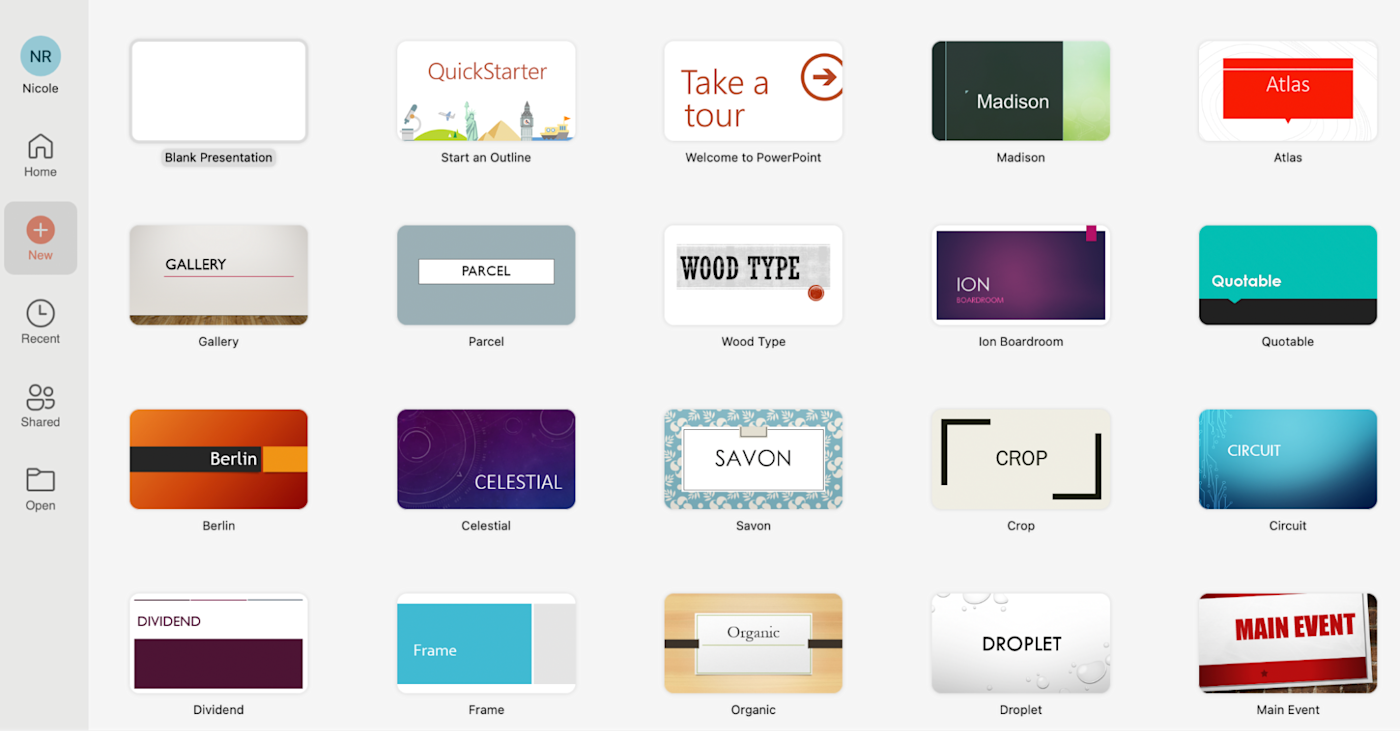
- Understanding the Start Screen
- Creating a New Blank Presentation
- The PowerPoint Screen
- How Microsoft PowerPoint Works
- Using the Ribbon
- Using Ribbon KeyTips
- Showing and Collapsing the Ribbon
- Understanding Backstage View
- Accessing Backstage View
- Using Shortcut Menus
- Understanding Dialog Boxes
- Launching Dialog Boxes
- Understanding the Quick Access Toolbar
- Adding Commands to the QAT
- Understanding the Status Bar
- Customising the Status Bar
- Exiting Safely From PowerPoint
Module 2: Your First Presentation
- Creating Presentations in PowerPoint
- Creating a Presentation
- Applying Theme Variants
- The Save As Place
- The Save As Dialog Box
- Typing Text Into a Slide
- Inserting New Slides
- Typing Text Using the Outline Pane
- Applying Slide Transitions
- Saving a Presentation
- Previewing a Slide Show
- Closing a Presentation
Module 3: Working With Presentations
- The Open Place
- The Open Dialog Box
- Opening a Presentation
- Opening Multiple Presentations
- Switching Between Open Presentations
- Understanding Presentation Views
- Changing Presentation Views
- Navigating a Presentation
- Using the Zoom Tool
- Opening a Recent Presentation
Module 4: Working With Text
- Editing Text
- Checking Spelling
- Understanding Font Formatting
- Applying Font Formatting
- Applying Paragraph Formatting
- Changing Bullet and Numbering Styles
- Moving and Resizing Placeholders
- Applying WordArt to Text
- Converting Text to SmartArt
Module 5: Slide Layouts
- Understanding Slide Layouts
- Inserting a Title Slide
- Inserting a Title and Content Slide
- Inserting a Section Header Slide
- Inserting a Table
- Inserting a Picture With Caption Slide
- Inserting a Chart
- Changing the Slide Layout
Module 6: SmartArt
- Understanding SmartArt
- Inserting a SmartArt Graphic
- Inserting Text Into SmartArt
- Adding Shapes Below
- Adding Shapes Above
- Adding Shapes Before and After
- Adding an Assistant
- Promoting and Demoting Shapes
- Switching SmartArt Right to Left
- Resizing SmartArt
- Changing the SmartArt Layout
- Applying a Colour Scheme
- Applying a SmartArt Style
- Deleting SmartArt Shapes
Module 7: Shapes
- Drawing Shapes
- Resizing Shapes
- Editing Shapes
- Positioning Shapes
- Arranging Shapes
- Merging Shapes
- Formatting Shapes
- Using the Eyedropper
- Copying Shapes
- Aligning Shapes Using the Ribbon
- Aligning Objects Using Smart Guides
- Inserting and Formatting Text
- Connecting Shapes
- Grouping Shapes
- Rotating Shapes
Module 8: Preparing for Presentations
- Using Slide Sorter View
- Reusing Slides
- Adding Sections
- Adding Notes to Your Slides
- Slide Numbers
- About Hyperlinks
- Creating an Internal Hyperlink
- Creating a Hyperlink to Another Presentation
- Creating a Hyperlink to Another Application
- Keyboard Shortcuts for Navigating Slide Shows
- Using Resume Reading
- Presenting a Slide Show
Module 9: Printing Your Presentation
- Understanding Printing
- Previewing Slides
- Printing Slides
- Printing Handouts
- Printing Notes Pages
- Printing the Outline
Module 10: Getting Help
- Understanding How Help Works
- Using Tell Me
- Accessing the Help Window
- Navigating the Help Window
- Using Google to Get Help
- Printing a Help Topic
Module 11: Brilliant Presentations
- Planning a Presentation
- Make It Readable
- The Four Pillars of Great Design
- Perfect Presentation Layouts
- Presenting Polished Presentations
- Presentation Methods and Hardware
Why Learn PowerPoint in 2025?
PowerPoint remains one of the most powerful tools for business, education, and professional communication. Whether you’re presenting ideas to clients, running internal meetings, or building slide decks for webinars, knowing how to use PowerPoint effectively gives you a competitive edge. Our PowerPoint for Beginners course is perfect for anyone looking to build a solid foundation and confidently design professional-looking slides from scratch.
What You’ll Learn in PowerPoint for Beginners
- Understand the PowerPoint interface and navigation tools
- Create presentations using slide layouts, text, and images
- Apply design themes, SmartArt, and charts
- Add animations, transitions, and hyperlinks
- Organise, preview, and print presentations with ease
Frequently Asked Questions
Is this PowerPoint course really for beginners?
Yes! This course is specifically designed for users who are completely new to Microsoft PowerPoint or have minimal experience. No prior presentation skills are needed.
Do I need Microsoft 365 to participate?
We recommend Microsoft 365, but Office 2019 users can also complete the course with minimal feature differences.
Is the course available online?
Yes, we offer live online sessions as well as in-person classes in multiple cities.
Will I get a certificate?
Yes, all attendees receive a Certificate of Completion that confirms your participation in the Microsoft PowerPoint for Beginners course.
Related Courses…




Course Inclusions…
Certified Trainers
All our trainers are Microsoft 365 experts in their own right, and must first be qualified to teach in our own World Education Alliance (WEA) Training Certification Program before delivering any of our courses.
We feel that it is important that all of the trainers and instructors can take their real-world experiences into the classroom, in order to ensure that they are well equipped to respond to any queries and questions which may be put their way, as well as give accurate and relevant guidance in the most appropriate methods to leverage the technology which SharePoint and its related tools provide.
Course Materials Provided
Our Microsoft 365 courseware is known as being some of the best training materials in the world.
FREE Email Support
We offer free post-course support with all of our courses, available via email, telephone, or our Viva Engage community.
FREE Re-sits within 10 Months
Once you've attended any of our public courses, you can re-sit the same course as many times as you like within the next 10 months, as long as your re-sit course has reached the minimum number of paid attendees required to go ahead.
Certificate of Completion
Anyone attending a 3grow course will be provided with a personalised certificate of completion.
Get Hands-on Experience
All 3grow courses include plenty of hands-on experience, delivered via a combination of instructor-led follow-along demos and comprehensive lab exercises.
Personal Class Sizes
Although we allow a maximum of only 10 attendees on our public courses, the average is around 5 students, therefore each participant will leave the course feeling like they received the personal attention they deserve.


