
‘Microsoft Excel Visual Basic’ Overview
During this 2 day course, instructors will teach participants to use the VBA Editor, understand the Excel object model, write code and use a range of common programming techniques. Students will learn to create a variety of macros, customise menus and forms, work with user-defined functions, command procedures and variables, and automate advanced procedures.
Course Code: EXLVBA
Duration: 2 Days
‘Microsoft Excel Visual Basic’ Audience
This course is intended for proficient Microsoft Excel users who wish to learn how to automate standard features and develop programs in VBA.
‘Microsoft Excel Visual Basic’ Prerequisites
This course assumes the student has completed Excel Advanced course, or have equivalent skills. Participants should have extensive experience designing and creating workbooks and have a good working knowledge of formulas, ranges, functions and multiple workbooks.
'Microsoft Excel Visual Basic' Modules
Module 1: Understanding Excel VBA
- Programming in Microsoft Excel
- VBA Terminology
- Displaying the DEVELOPER Tab
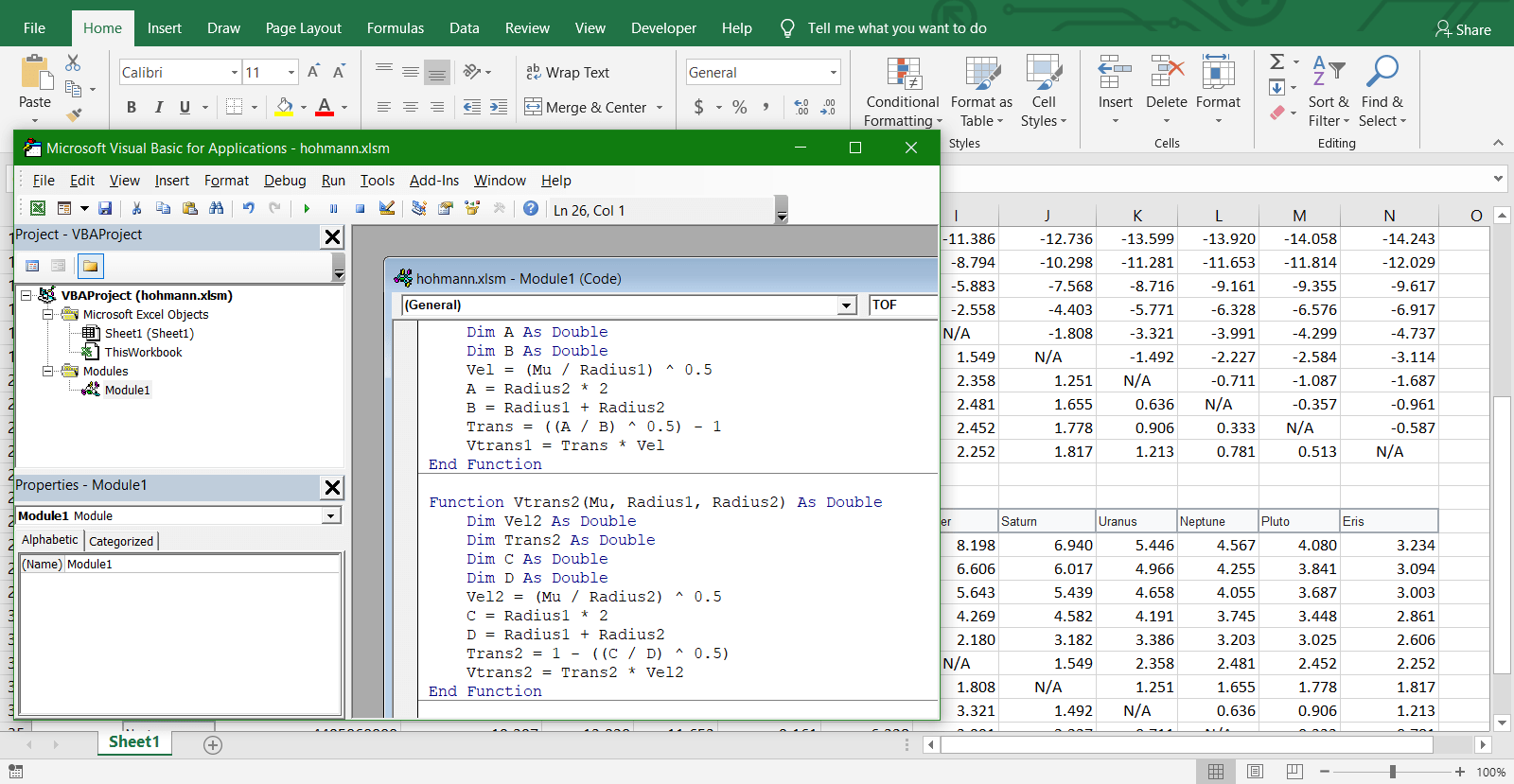
- The VBA Editor Screen
- Opening and Closing the Editor
- Understanding Objects
- Viewing the Excel Object Model
- Using the Immediate Window
- Working With Object Collections
- Setting Property Values
- Working With Worksheets
- Using the Object Browser
- Programming With the Object Browser
- Accessing Help
- Code Glossary
Module 2: Starting With Excel VBA
- Using the Project Explorer
- Working With the Properties Window
- Using the Work Area
- Viewing Other Panes
- Working With Toolbars
- Working With a Code Module
- Running Code From the Editor
- Setting Breakpoints in Code
- Stepping Through Code
Module 3: Procedures
- Understanding Procedures
- Where to Write Procedures
- Creating a New Sub Routine
- Using IntelliSense
- Using the Edit Toolbar
- Commenting Statements
- Indenting Code
- Bookmarking in Procedures
- Code Glossary
Module 4: Using Variables
- Understanding Variables
- Creating and Using Variables
- Explicit Declarations
- The Scope of Variables
- Procedure Level Scoping
- Module Level Scoping
- Understanding Passing Variables
- Passing Variables by Reference
- Passing Variables by Value
- Understanding Data Types for Variables
- Declaring Data Types
- Using Arrays
- Code Glossary
Module 5: Functions in VBA
- Understanding Functions
- Creating User-Defined Functions
- Using a User-Defined Function in a Worksheet
- Setting Function Data Types
- Using Multiple Arguments
- Modifying a User-Defined Function
- Creating a Function Library
- Referencing a Function Library
- Importing a VBA Module
- Using a Function in VBA Code
- Code Glossary
Module 6: Using Excel Objects
- The Application Object
- The Workbook Objects
- Program Testing With the Editor
- Using Workbook Objects
- The Worksheets Object
- Using the Worksheets Object
- The Range Object
- Using Range Objects
- Using Objects in a Procedure
- Code Glossary
Module 7: Programming Techniques
- The MsgBox Function
- Using MsgBox
- InputBox Techniques
- Using the InputBox Function
- Using the InputBox Method
- The IF Statement
- Using IF for Single Conditions
- Using IF for Multiple Conditions
- The Select Case Statement
- Using the Select Case Statement
- For Loops
- Looping With Specified Iterations
- The Do Loop Statement
- Looping With Unknown Iterations
- Code Glossary
Module 8: Creating Custom Forms
- Understanding VBA Forms
- Creating a Custom Form
- Adding Text Boxes to a Form
- Changing Text Box Control Properties
- Adding Label Controls to a Form
- Adding a Combo Box Control
- Adding Option Buttons
- Adding Command Buttons
- Running a Custom Form
Module 9: Programming UserForms
- Handling Form Events
- Initialising a Form
- Closing a Form
- Transferring Data From a Form
- Running Form Procedures
- Creating Error Checking Procedures
- Running a Form From a Procedure
- Running a Form From the Toolbar
- Code Glossary
Module 10: Automatic Startup
- Programming Automatic Procedures
- Running Automatic Procedures
- Automatically Starting a Workbook
Module 11: Error Handling
- Understanding Error Types
- The on Error Statement
- Simple Error Trapping
- Using the Resume Statement
- Using Decision Structures in Error Handlers
- Working With Err Object
- Error Handling in Forms
- Coding Error Handling in Forms
- Defining Custom Errors
- Code Glossary
Related Courses…





Course Inclusions…
Certified Trainers
All our trainers are Microsoft 365 experts in their own right, and must first be qualified to teach in our own World Education Alliance (WEA) Training Certification Program before delivering any of our courses.
We feel that it is important that all of the trainers and instructors can take their real-world experiences into the classroom, in order to ensure that they are well equipped to respond to any queries and questions which may be put their way, as well as give accurate and relevant guidance in the most appropriate methods to leverage the technology which SharePoint and its related tools provide.
Course Materials Provided
Our Microsoft 365 courseware is known as being some of the best training materials in the world.
FREE Email Support
We offer free post-course support with all of our courses, available via email, telephone, or our Viva Engage community.
FREE Re-sits within 10 Months
Once you've attended any of our public courses, you can re-sit the same course as many times as you like within the next 10 months, as long as your re-sit course has reached the minimum number of paid attendees required to go ahead.
Certificate of Completion
Anyone attending a 3grow course will be provided with a personalised certificate of completion.
Get Hands-on Experience
All 3grow courses include plenty of hands-on experience, delivered via a combination of instructor-led follow-along demos and comprehensive lab exercises.
Personal Class Sizes
Although we allow a maximum of only 10 attendees on our public courses, the average is around 5 students, therefore each participant will leave the course feeling like they received the personal attention they deserve.


