

‘Microsoft Excel Advanced’ Overview
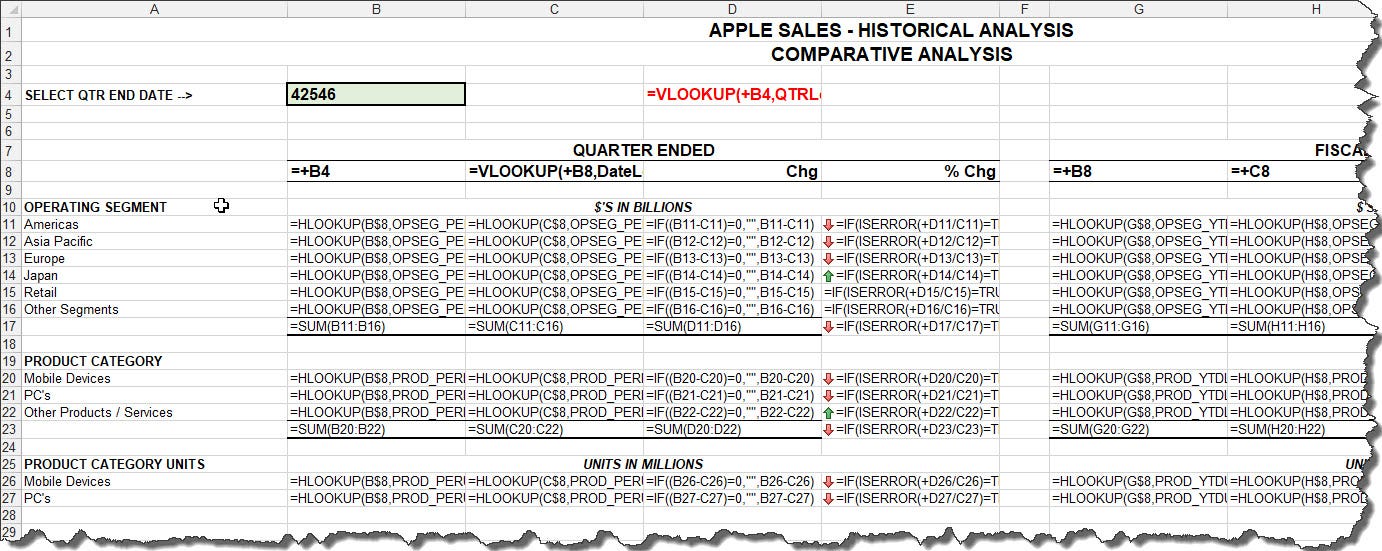
This one-day course covers aspects of Microsoft Excel that goes well beyond building basic workbooks, including workbook automation and productivity features. Participants will learn advanced Excel techniques in a range of areas such as worksheet and workbook consolidation, data validation, PivotTables and Pivot Charts, Lookup and Reference Functions, Linking Data, Financial Functions, Recorded Macros and much more.
Course Code: EXLADV
Duration: 1 Day
‘Microsoft Excel Advanced’ Audience
This course is intended for experienced Microsoft Excel users who wish to extend their knowledge and skills beyond building and formatting simple workbooks. Upon completion of the course, students will have learned the skills to able work with Excel’s advanced data analysis tools, automate workbook operations and effectively use complex functions.
‘Microsoft Excel Advanced’ Prerequisites
Participants should have already completed both the Excel for Beginners course and Excel Intermediate course before attending this course, or have Excel skills up to the intermediate level course.
'Microsoft Excel Advanced' Modules
Module 1: Setting Excel Options
- Understand Excel Options
- Personalise Excel
- Set up the Default Font
- Set up Formula Options
- Understand Save Options
- Set up Save Options
- Set up the Default File Location
- Set up Advanced Options in Excel
Module 2: Lookup Functions in Excel
- Understand Data Lookup Functions
- Use CHOOSE Function
- Use VLOOKUP Function
- Use VLOOKUP for Exact Matches
- Use HLOOKUP Function
- Use INDEX Function
- Use MATCH Function
- Understand Reference Functions
- Use ROW and ROWS
- Use COLUMN and COLUMNS
- Use ADDRESS Function
- Use INDIRECT Function
- Use OFFSET Function
Module 3: Text Functions in Excel
- Understanding Text Functions
- Use PROPER Function
- Use UPPER and LOWER Functions
- Use CONCATENATE Function
- Use LEFT and RIGHT Functions
- Use MID Function
- Use LEN Function
- Use SUBSTITUTE Function
- Use T Function
- Use TEXT Function
- Use VALUE Function
Module 4: Financial Functions
- Understand Financial Functions
- Use PMT Function
- Use FV Function
- Use NPV Function
- Use PV Function
- Use RATE Function
- Use EFFECT Function
- Use NOMINAL Function
Module 5: Information Functions
- Understanding Information Functions
- Use CELL Function
- Use ISBLANK Function
- Use ISERR Function
- Use ISODD and ISEVEN Functions
- Use ISNUMBER and ISTEXT Functions
- Use TYPE Function
Module 6: Complex Formulas
- Scope a Formula
- Using Long-Hand Formulas
- How to Prepare for Complex Formulas
- How to Create the Base Formula
- Add More Operations
- Edit a Complex Formula
- Add More Complexity
- Copy Nested Functions
- Switch to Manual Recalculation
- Paste Values from Formulas
- How to Document Formulas
Module 7: Goal Seeking
- Understand Goal Seeking
- Use Goal Seek
Module 8: Data Linking in Excel
- Understand Data Linking
- How to Link Between Worksheets
- How to Link Between Workbooks
- Update Links Between Workbooks
Module 9: Data Consolidation
- Understand Data Consolidation
- Consolidate with Identical Layouts
- Create a Linked Consolidation
- Consolidate from Different Layouts
- Consolidate Data Using the SUM Function
Module 10: Protecting Data
- Understand Data Protection
- Provide Total Access to Cells
- Protect a Worksheet
- Work with a Protected Worksheet
- Disable Worksheet Protection
- Provide Restricted Access to Cells
- Password Protect a Workbook
- Open a Password Protected Workbook
- Remove a Password from a Workbook
Module 11: Summarising and Subtotalling
- Create Subtotals
- Use a Subtotalled Worksheet
- Create Nested Subtotals
- Copy Subtotals
- Use Subtotals with AutoFilter
- Create Relative Names for Subtotals
- Use Relative Names for Subtotals
Module 12: Grouping and Outlining
- Understand Grouping and Outlining
- Create an Automatic Outline
- Work with an Outline
- Create a Manual Group
- Group by Columns
Module 13: Pivot Tables
- Understand PivotTables
- Working with Recommended PivotTables
- Create Your Own PivotTable
- Define the PivotTable Structure
- Filtere a PivotTable
- Clear a Report Filter
- Switch PivotTable Fields
- Format a PivotTable
- Understand Slicers
- Create Slicers
- Insert a Timeline Filter
Module 14: Pivot Charts
- Insert a PivotChart
- Define the PivotChart Structure
- Change the PivotChart Type
- Use the PivotChart Filter Field Buttons
- Move Pivot Charts to Chart Sheets
Module 15: Pivot Table Features
- Use Compound Fields
- How to Count in a PivotTable
- Format PivotTable Values
- Work with PivotTable Grand Totals
- Work with PivotTable Subtotals
- Find the Percentage of Total
- Find the Difference From
- How to Group in PivotTable Reports
- Create Running Totals
- Create Calculated Fields
- Provide Custom Names
- Create Calculated Items
- Understand PivotTable Options
- How to Sort in a PivotTable
Module 16: Recorded Macros
- Understand Excel Macros
- Set Up Macro Security
- Save a Document as Macro Enabled
- Record a Simple Macro
- Run a Recorded Macro
- Understand Relative Cell References
- Run a Macro with Relative References
- View a Macro
- Edit a Macro
- Assign a Macro to the Toolbar
- Run a Macro from the Toolbar
- Assign a Macro to the Ribbon
- Assign a Keyboard Shortcut to a Macro
- Delete a Macro
- Copy a Macro
Related Courses…






Course Inclusions…
Certified Trainers
All our trainers are Microsoft 365 experts in their own right, and must first be qualified to teach in our own World Education Alliance (WEA) Training Certification Program before delivering any of our courses.
We feel that it is important that all of the trainers and instructors can take their real-world experiences into the classroom, in order to ensure that they are well equipped to respond to any queries and questions which may be put their way, as well as give accurate and relevant guidance in the most appropriate methods to leverage the technology which SharePoint and its related tools provide.
Course Materials Provided
Our Microsoft 365 courseware is known as being some of the best training materials in the world.
FREE Email Support
We offer free post-course support with all of our courses, available via email, telephone, or our Viva Engage community.
FREE Re-sits within 10 Months
Once you've attended any of our public courses, you can re-sit the same course as many times as you like within the next 10 months, as long as your re-sit course has reached the minimum number of paid attendees required to go ahead.
Certificate of Completion
Anyone attending a 3grow course will be provided with a personalised certificate of completion.
Get Hands-on Experience
All 3grow courses include plenty of hands-on experience, delivered via a combination of instructor-led follow-along demos and comprehensive lab exercises.
Personal Class Sizes
Although we allow a maximum of only 10 attendees on our public courses, the average is around 5 students, therefore each participant will leave the course feeling like they received the personal attention they deserve.


